
Introducing Amazon Aurora powers for Kiro shows how you can build Amazon Aurora PostgreSQL-backed applications faster using AI agent-assisted development. This series takes it further. You start from a database administrator (DBA) perspective, using Kiro not to build apps, but to investigate and resolve database issues and progressively evolve the agent from an interactive assistant to an operator powered by Amazon Bedrock.
This two-part series evolves the agent from an interactive assistant to an agent powered by Amazon Bedrock:
- Part 1 (this post): Use Kiro as a DBA assistant to investigate and resolve an Amazon Aurora performance issue.
- Part 2: Add your organization’s runbooks and policies using Retrieval Augmented Generation (RAG) on Amazon Aurora PostgreSQL.
In this post, you learn how to create a custom DBA assistant with pre-configured tools and permissions, then use it to investigate a realistic Amazon Aurora performance incident using natural language. You identify root causes through Amazon CloudWatch metrics and Amazon CloudWatch Database Insights. Review, apply a fix, and verify the resolution, all without leaving the Kiro interface.
Solution overview
To get started, you install the Kiro CLI or IDE on your laptop or workspace, download and enable the awslabs.postgres-mcp-server and the awslabs.cloudwatch-mcp-server, and configure the Kiro CLI with an appropriate AWS profile to connect to Amazon Relational Database Service (Amazon RDS) or Amazon Aurora with the required privileges.
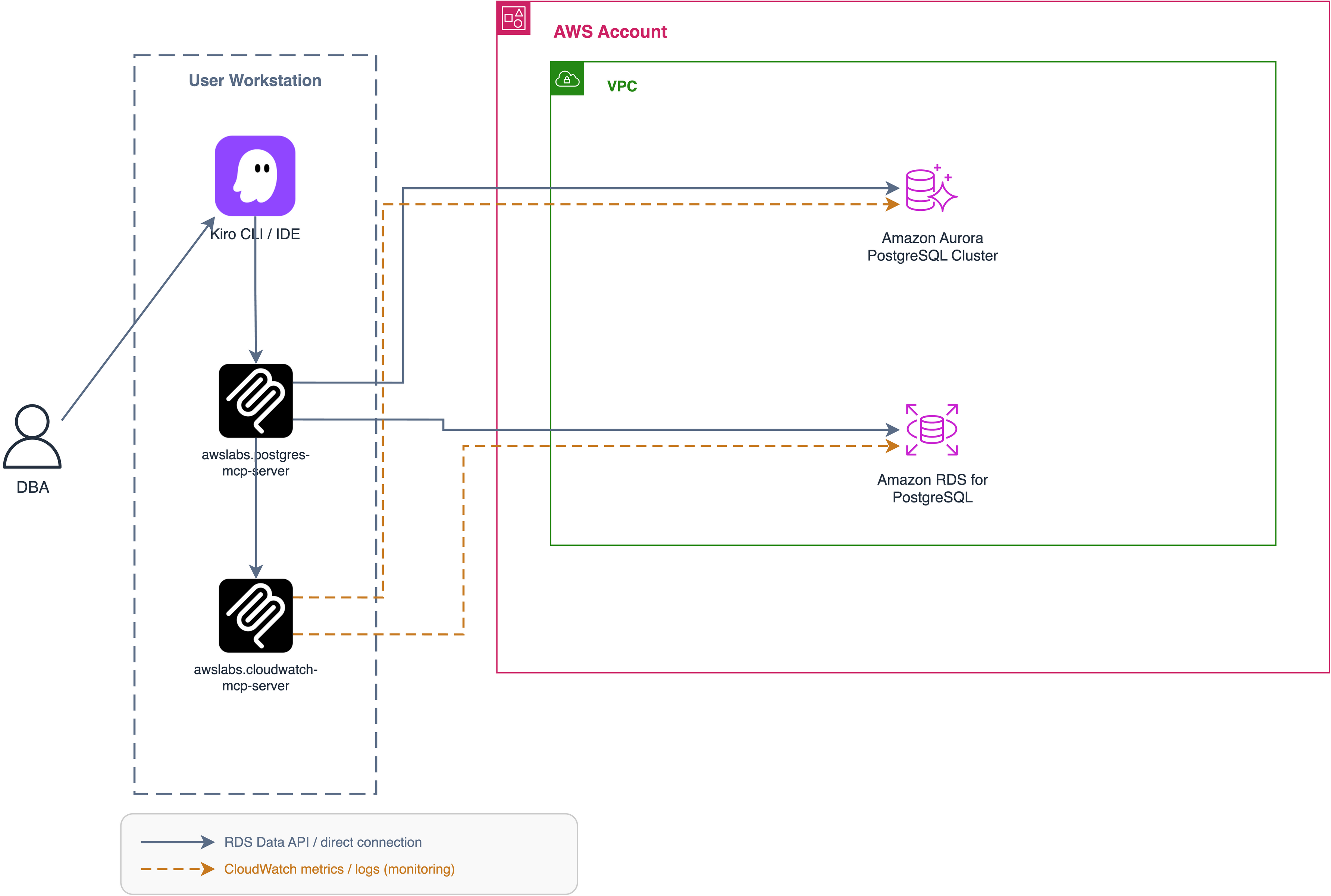
Figure 1: High-level architecture of the Kiro DBA assistant
A DBA interacts with Kiro (CLI or IDE) on their workstation, which launches two Model Context Protocol (MCP) servers as local subprocesses. The awslabs.postgres-mcp-server uses your AWS profile and database credentials to connect to your PostgreSQL targets, such as an Amazon Aurora PostgreSQL cluster and an Amazon RDS for PostgreSQL instance. The awslabs.cloudwatch-mcp-server uses the same AWS profile to read Amazon CloudWatch metrics, alarms, and logs for those databases. The two virtual private clouds (VPCs) show that a single assistant can work across both engines, though running them in one VPC works equally well.
Example scenario
An incident alerting service alerts you: “Aurora PostgreSQL cluster demo-apg CPU utilization above 90% for 10 minutes. Database connections approaching limit.”
Normally, you’d open the Amazon RDS console, check Amazon CloudWatch dashboards, switch to Amazon CloudWatch Database Insights, connect with psql, run diagnostic queries, cross-reference documentation, message the application team on Slack, and context-switch between six different tools before you even understand the problem. With Kiro, you can handle this incident in a single interface.
This walkthrough shows how to handle incident response from initial triage through root cause analysis to resolution using Kiro with two MCP servers: the Aurora PostgreSQL MCP server and the Amazon CloudWatch MCP server. MCP is a standard for connecting AI assistants to external tools and data sources. For more information, see Aurora PostgreSQL MCP server.
Prerequisites
- Kiro IDE or Kiro CLI installed with the Aurora PostgreSQL power configured. See Introducing Amazon Aurora powers for Kiro for setup instructions.
- Python 3.10+ and uv installed. uv is a fast Python package and project manager for the MCP server runtime. Verify with
python --version && uv --version. - AWS Command Line Interface (AWS CLI) configured with credentials (only the least privileges required). Verify with
aws sts get-caller-identity. - An Aurora PostgreSQL cluster with Amazon CloudWatch Database Insights enabled (a feature that provides database performance monitoring and analysis).
- IAM permissions to read Amazon CloudWatch metrics, alarms, and logs, and Database Insights (Performance Insights) data. See the IAM policy in the Security considerations section.
Note: This walkthrough uses
demo-apgas the cluster name. Replace it with your own resource name throughout.
Create your DBA assistant agent
Before responding to incidents, create a “custom agent” for DBA work. With this one-time setup, you can launch the agent in seconds during future incidents.
- Create the agent directory by running the following command:
- Create a new file named
dba-agent.jsonin the~/.kiro/agents/directory. - Copy the following JSON configuration into the file.
By default, the MCP server runs in read-only mode. The agent can investigate (SELECT, EXPLAIN) but cannot execute schema changes or data modifications directly. Recommended fixes are presented as commands for the DBA to execute through their change management process. See the Security considerations section for details.
- Save the file.
This configuration includes:
- prompt: The DBA incident response playbook and conventions, loaded as system context for every conversation.
- mcpServers: Two MCP servers, so you don’t need a separate
mcp.json. Theawslabs.postgres-mcp-serverhandles data plane operations (diagnostic SQL such as queries againstpg_stat_activityandpg_stat_statements) and reads cluster and instance details. Theawslabs.cloudwatch-mcp-serverretrieves CloudWatch metrics (CPU, connections, latency, freeable memory), active alarms and alarm history, and Amazon CloudWatch Logs analysis, including the database load metrics that Database Insights publishes to the AWS/RDS namespace (DBLoad,DBLoadCPU,DBLoadNonCPU). The Database Insights top SQL and top wait event breakdowns come from read-only AWS CLI commands (aws pi get-resource-metrics,aws pi describe-dimension-keys) that Kiro runs with your AWS profile. - allowedTools: Auto-approves MCP server tool calls from the configured servers so you’re not prompted for permission during an incident.
- welcomeMessage: Confirms you’re in the right agent when you launch.
To configure database credentials
The Aurora PostgreSQL MCP server requires database credentials. Configure them using one of these methods:
- AWS Secrets Manager (recommended): Store credentials in Secrets Manager and reference the secret ARN.
- Environment variables: Set
PGUSERandPGPASSWORDbefore launching Kiro.
Example with AWS Secrets Manager
- Store credentials in Secrets Manager:
- Add to your
dba-agent.json:
Credentials are held in process memory only for the active session. AWS credentials come from your local AWS profile, and database access uses RDS Data API, IAM authentication, or Secrets Manager-retrieved credentials, depending on the connection method chosen. Nothing persisted by the MCP server itself.
Security considerations
For production use, enforce write protection at three independent layers so the agent can only investigate, not modify:
| Layer | What it blocks | Error if attempted |
| Steering file | Agent won’t attempt writes | Agent responds with the command for your change management process |
| Database role | SQL writes (CREATE INDEX, DROP, INSERT) | ERROR: cannot execute CREATE INDEX in a read-only transaction |
| IAM policy | AWS API mutations (snapshots, modify, delete) | AccessDeniedException: not authorized to perform rds:CreateDBClusterSnapshot |
Steering file: Create the file .kiro/steering/dba-write-safety.md with the following content:
Database layer: Connect the PostgreSQL MCP server using a read-only role:
Note: default_transaction_read_only only sets the session default, and a session can override it (SET transaction_read_only = off). The role privileges are the real control: pg_read_all_data grants read access only, so DDL and DML still fail with a permission error. pg_read_all_data requires PostgreSQL 14 or later.
Store these credentials in Secrets Manager and reference them via AWS_SECRET_ARN in your agent config.
IAM layer: Attach the following policy to the AWS profile used by the MCP servers and Kiro. It allows the read actions that the PostgreSQL MCP server, the CloudWatch MCP server, and the Database Insights (Performance Insights) CLI calls need, and explicitly denies mutations:
With all three layers in place, the agent operates strictly as an investigator surfacing insights and recommendations while leaving the changes to your established change management process.
Demonstration
In the following video, we walk through a real-world scenario where an incident occurs on an Amazon Aurora PostgreSQL-Compatible Edition cluster. Watch as a database administrator uses the agent you configured earlier to quickly identify and troubleshoot the issue.
To apply the fix
After reviewing these recommendations with the application team, you decide to redirect the read traffic for this function to the reader instance to reduce writer load. You also choose to apply Fix 2: creating an index.
First, create a snapshot manually (not with Agent) and name it appropriately like “pre-index-fix-demo-apg” before you make changes.
Wait for the snapshot to be completed.
After consulting with the application team, you determined that Fix 2 from the preceding video is the best fit for most queries originating from the application. To implement this fix, you connect using our DBA role and create the following index.
Once the index is in place, validate the change by reviewing the explain plans for the relevant queries to confirm that the new index is improving query performance.
It’s important to note that these recommendations are based on general best practices and the current state of your database. Since the assistant doesn’t have access to your historical performance data, operational runbooks, or environment-specific configurations, the suggestions may need to be validated against your workload profile. To address this, in Part 2 of this series, you build a RAG solution on Aurora PostgreSQL that stores your standard operating procedures (SOPs), historical metrics, and environment context so the DBA assistant can deliver recommendations tailored to your specific environment.
Note: Don’t delete the resources you created in this post. You use them in Part 2, which includes a cleanup section that removes everything when you’re done.
Conclusion
In this post, you learned how to use Kiro to create a DBA assistant that can diagnose live performance issues, analyze root causes, capture recommendations, and manually apply the appropriate fix on the database adhering to your established change management process.
The workflow combined control plane and monitoring reads (cluster status, CloudWatch metrics and alarms, Database Insights load analysis) with data plane operations (diagnostic queries) in one conversation, avoiding the context-switching that fragments incident response. The three-layer security model keeps the agent read-only by default while still providing actionable recommendations with exact commands for your change management process.
Kiro with Aurora PostgreSQL powers is more than a natural language wrapper around SQL. The steering files provide production-safe defaults and best practices that guide every recommendation, and custom steering files let you encode your team’s specific conventions.
Next steps:
- Try this walkthrough with your own Aurora cluster.
- Review the Kiro agent configuration reference for advanced customization.
In Part 2, you go beyond static steering files by adding a RAG layer that uses pgvector on Aurora PostgreSQL. With it, your DBA agent can draw on your organization’s runbooks, incident history, and compliance documentation, so the next time you get paged at 2 AM, the agent already knows what your team did last time.


