Hi, Community!
In Part 1 of this series, we built a production using the HL7 Messaging type and created a BPL Business Process that enriches an incoming HL7 message with a %DynamicObject. In Part 2, we demonstrated seven real-world property-access pitfalls that cause silent failures when working with dynamic objects.
This article closes the series with something different. Instead of a structured HL7 message, we deal with raw stream content %Stream.Object that arrives unparsed. The challenge here is that Business Rules work best against simple values. You cannot call parsing methods inside a rule condition. So the approach is to read the stream, extract the routing values in the Business Process, and pass clean context variables to the rule.
We will build a second flow alongside the HL7 flow from Parts 1 and 2, add a custom Business Service that reads raw files as streams, a Business Process that extracts routing values, and a Business Operation that logs what it receives. By the end, both flows will be running side by side and visible in the same Message Viewer.
TL;DR
- A
%Stream.Objectin IRIS is raw, unparsed content—unlike a structured HL7 message; it has no field map. - Use
Read()to pull stream content into a string — for payloads larger than 32KB, read in chunks using a loop. UseRewind()to reset the pointer so the stream can be read again. - Extract routing values from raw content using
$Piece()in the Business Process before the routing rule evaluates them. - Business Rule conditions must evaluate simple values; never try to parse a stream directly inside a rule condition.
Who This Article Is For
This guide is for IRIS Interoperability developers who need to route messages based on raw stream content and want to understand how to read, inspect, and extract values from a %Stream.Object before passing them to a routing rule.
Prerequisites
Complete Part 1 and Part 2 of this series first. The Demo.HL7RulesDemo production must be running with all components from both previous articles in place.
What Is a Stream in IRIS?
A %Stream.Object in IRIS is raw binary or character data that has not been parsed into a structured message class. When a file adapter reads a non-standard format, or when an HTTP adapter receives a raw request body, the content arrives as a stream. Your code must read it, inspect its contents, and decide what to do with it before passing it to the next component.
This is different from what we did in Part 1, where HL7FileService parsed the file into an EnsLib.HL7.Message before our code ran. In this article, the stream arrives completely raw, and our Business Service is responsible for reading it.
The Flow We Will Add
We will add a second, independent flow to the existing production:
- StreamRouterService: A custom Business Service that reads raw
.txtfiles from a dedicated folder. - StreamRouter: A custom Business Process that reads the stream, extracts routing values, and makes the routing decision.
- StreamOperation: A custom Business Operation that receives the routed message and logs what it received.
The HL7 flow from Parts 1 and 2 keeps running alongside this. Both flows share the same production canvas.
The Raw Stream Test Files
The test files are plain text with pipe-separated values, simulating a raw payload from an external system that has not been parsed yet.
We create them from the IRIS terminal to avoid line-ending issues:
objectscript// Create a high-priority test file for the stream routing demo Set file = ##class(%File).%New("C:\stream\test_high.txt") // Open in write mode - NWS means New file, Write, Stream If 'file.Open("NWS") { Write "Error: Could not open file for writing", ! Quit } Do file.WriteLine("PRIORITY:HIGH|DEPT:CARDIOLOGY|PATIENT:MRN001|TYPE:ADMISSION") Do file.Close() Write "File created: C:\stream\test_high.txt", ! // Create a low-priority test file for the default route demo Set file = ##class(%File).%New("C:\stream\test_low.txt") // Open in write mode - NWS means New file, Write, Stream If 'file.Open("NWS") { Write "Error: Could not open file for writing", ! Quit } Do file.WriteLine("PRIORITY:LOW|DEPT:GENERAL|PATIENT:MRN002|TYPE:DISCHARGE") Do file.Close() Write "File created: C:\stream\test_low.txt", ! Step 1: Write and Add the Business Service
The Business Service reads the raw file as a %Stream.Object. It does not parse it. Instead, it reads the raw content, logs it, extracts the routing values, and forwards them to the Business Process.
Class Demo.StreamRouterService Extends Ens.BusinessService { Parameter ADAPTER = "EnsLib.File.InboundAdapter"; Method OnProcessInput(pInput As %Stream.Object, Output pOutput As %RegisteredObject) As %Status { Set sc = $$$OK Try { // Make sure we actually received something before processing If '$IsObject(pInput) || (pInput.Size = 0) { $$$LOGWARNING("Received empty or invalid stream - skipping") Quit } // Routing values only come from the first line, so keep reading // chunks until the first line break (or end of file) rather than // loading the whole file, however long the first line is Set chunk = "" While (chunk '[ $Char(10)) && 'pInput.AtEnd { Set chunk = chunk _ pInput.Read(32000) } // Strip a trailing CR so both CRLF and LF line endings work Set line = $ZStrip($Piece(chunk, $Char(10), 1), ">", $Char(13)) $$$LOGINFO("Stream size: " _ pInput.Size _ " / first line length: " _ $Length(line)) $$$LOGINFO("First line: " _ $Extract(line, 1, 500)) // Extract routing values by field name, so field order doesn't matter // Expected format: PRIORITY:HIGH|DEPT:CARDIOLOGY|PATIENT:MRN001|TYPE:ADMISSION Set priority = "", department = "" For i = 1:1:$Length(line, "|") { Set field = $Piece(line, "|", i) Set key = $ZConvert($ZStrip($Piece(field, ":", 1), "<>W"), "U") Set value = $ZStrip($Piece(field, ":", 2, $Length(field, ":")), "<>W") If key = "PRIORITY" { Set priority = value } ElseIf key = "DEPT" { Set department = value } } // Validate extracted values before forwarding If (priority = "") || (department = "") { $$$LOGWARNING("Could not extract Priority or Department from first line: " _ $Extract(line, 1, 500)) Quit } $$$LOGINFO("Extracted Priority: " _ priority _ " / Department: " _ department) // Build a StringRequest to carry the extracted values to StreamRouter Set request = ##class(Ens.StringRequest).%New() Set request.StringValue = "PRIORITY:" _ priority _ "|DEPT:" _ department // Send asynchronously so the service is not blocked waiting for a response Set sc = ..SendRequestAsync("StreamRouter", request) } Catch ex { // Log the full error detail and return the status so IRIS can handle it $$$LOGERROR("Unexpected error in StreamRouterService: " _ ex.DisplayString()) Set sc = ex.AsStatus() } Quit sc } } One important note on Read(): calling Read(32000) on its own reads only the first 32KB of the stream and silently truncates the rest. For production use, always read in a loop until AtEnd is true as shown in the code above. For small test files like ours, this makes no difference, but for a real 4MB payload the single Read() call would drop most of the content with no error or warning.
In VS Code, create and compile this class:
Go to the production canvas. Click Add in the Services section:
- Service Class:
Demo.StreamRouterService - Service Name:
StreamRouterService - Description:
Reads raw text files as streams, extracts routing values, and forwards to StreamRouter. - Enable Now: Checked.
Click OK.
Click on StreamRouterService in the canvas. Set the following:
- File Path:
C:\stream\in\ - File Spec:
*.txt - Call Interval:
5
Click Apply.

Step 2: Write and Add the Business Operation
The Business Operation receives the routed message and logs what it received. Create and compile the class below:
Class Demo.StreamOperation Extends Ens.BusinessOperation
{Method OnMessage(pRequest As Ens.StringRequest,
Output pResponse As Ens.Response) As %Status
{
Set sc = $$$OK
Try {
// Validate the incoming request before processing
If '$IsObject(pRequest) || pRequest.StringValue = "" {
$$$LOGWARNING("Received empty or invalid request - skipping")
Quit
}// Log the routed message content for verification in the Event Log $$$LOGINFO("StreamOperation received: " _ pRequest.StringValue) // Extract individual values for any further processing if needed Set priority = $Piece($Piece(pRequest.StringValue, "|", 1), ":", 2) Set department = $Piece($Piece(pRequest.StringValue, "|", 2), ":", 2) $$$LOGINFO("Routing confirmed - Priority: " _ priority _ " Department: " _ department) } Catch ex { // Log the full error detail and return the status so IRIS can handle it $$$LOGERROR("Unexpected error in StreamOperation: " _ ex.DisplayString()) Set sc = ex.AsStatus() } Quit sc}
XData MessageMap
{
<MapItems>
<MapItem MessageType="Ens.StringRequest">
<Method>OnMessage</Method>
</MapItem>
</MapItems>
}
}
Go to the production canvas. Click Add in the Operations section:
- Operation Class:
Demo.StreamOperation - Operation Name:
StreamOperation - Description:
Receives routed stream messages and logs the result. - Enable Now: Checked.
Click OK.
Step 3: Write and Add the Business Process
The Business Process receives the extracted values from the Business Service and makes the routing decision. Create and compile the following class:
Class Demo.StreamRouter Extends Ens.BusinessProcess
{Method OnRequest(pRequest As Ens.StringRequest,
Output pResponse As Ens.Response) As %Status
{
Set sc = $$$OK
Try {
// Validate the incoming request before processing
If ('$IsObject(pRequest)) || (pRequest.StringValue = "") {
$$$LOGWARNING("StreamRouter received empty or invalid request - skipping")
Quit
}// Extract priority and department from the string passed by the service // Expected format: PRIORITY:HIGH|DEPT:CARDIOLOGY Set priority = $Piece($Piece(pRequest.StringValue, "|", 1), ":", 2) Set department = $Piece($Piece(pRequest.StringValue, "|", 2), ":", 2) // Validate extracted values before making a routing decision If (priority = "") || (department = "") { $$$LOGWARNING("StreamRouter could not extract routing values from: " _ pRequest.StringValue) Quit } $$$LOGINFO("StreamRouter - Priority: " _ priority _ " Dept: " _ department) // Route based on extracted stream values // Rule 1: High priority cardiology messages get dedicated routing If (priority = "HIGH") && (department = "CARDIOLOGY") { $$$LOGINFO("Rule matched: HIGH priority CARDIOLOGY - routing to StreamOperation") // Default: all other messages fall through to the standard route } Else { $$$LOGINFO("No specific rule matched - taking default route to StreamOperation") } // Send to StreamOperation regardless of which rule matched // In a real production, you would send to different targets per rule // No response is needed, so pass 0 for pResponseRequired; // otherwise the reply triggers OnResponse, which this class doesn't implement Set sc = ..SendRequestAsync("StreamOperation", pRequest, 0) } Catch ex { // Log the full error detail and return the status so IRIS can handle it $$$LOGERROR("Unexpected error in StreamRouter: " _ ex.DisplayString()) Set sc = ex.AsStatus() } Quit sc}
Storage Default
{
<Type>%Storage.Persistent</Type>
}
}
Go to the production canvas. Click Add in the Processes section:
- Process Class:
Demo.StreamRouter - Process Name:
StreamRouter - Description:
Extracts priority and department from stream content and makes the routing decision. - Enable Now: Checked.
Click OK.
The production now has both flows running side by side.

How It All Fits Together
Before testing, it helps to see how the stream flow compares to the HL7 flow from Part 1.
In the HL7 flow, HL7FileService parses the file into a structured EnsLib.HL7.Message before our code runs. By the time HL7Router receives it, the message has a full field map, and we can call GetValueAt("MSH:MessageType.MessageCode") directly.
In the stream flow, nothing is parsed upfront. StreamRouterService receives the file as a raw %Stream.Object. Our code reads it with Read(), rewinds it with Rewind(), pulls the routing values out using $Piece(), and passes them as a plain Ens.StringRequest to StreamRouter,which then makes the routing decision based on those extracted values.
The routing logic never sees the raw stream. It only evaluates simple string values, which is exactly how Business Rules are designed to work.
Step 4: Test the Full Stream Flow
Start the production if it is not already running. Drop test_high.txt into C:\stream\in</code>.
Go to Management Portal > Interoperability > View > Messages. You will see messages from both HL7FileService and StreamRouterService in the same list.

Click the message from StreamRouterService to open the Visual Trace. You will see the following:
-
StreamRouterService reads the raw file as a stream. -
StreamRouter receives the extracted values and makes the routing decision. -
StreamOperation receives and logs the result.
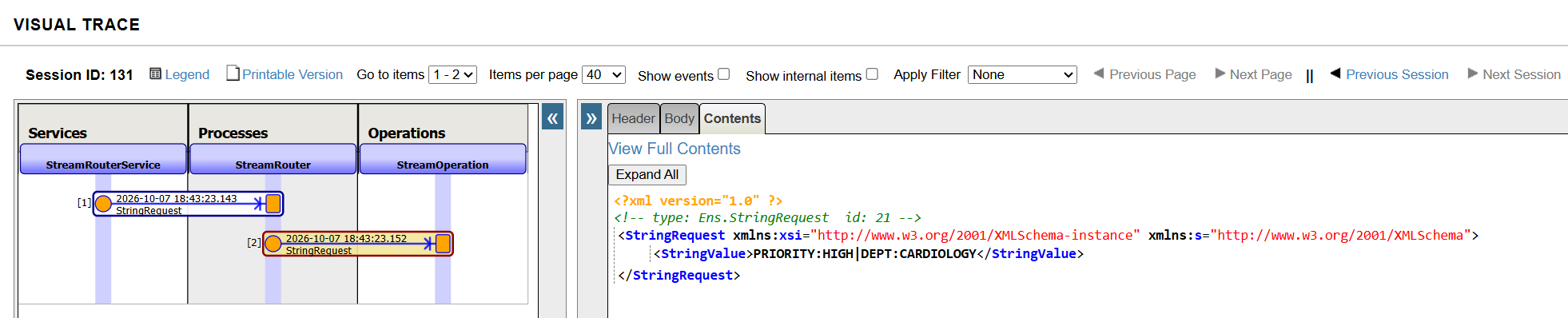 Mark the Show Events checkbox at the top. Expand each component to see the log entries.

Go to Management Portal > Interoperability > View > Event Log. Filter by StreamRouterService to see the stream processing entries for the LOW-priority file:

Now drop test_low.txt. The Event Log for this one should show the following:

Both routing paths are confirmed.
Why Extract Before Routing?
A question that comes up regularly: why not read the stream directly inside the routing rule condition?
The answer is that Business Rule conditions are expressions, not code blocks. You cannot call Read() or $Piece() inside a rule condition in the visual editor. Trying to do so either throws a compile error or silently evaluates to empty.
The correct pattern is always the same: extract and clean the values in the Business Process, store them in a request or context variable, and let the routing rule evaluate simple values. This also makes the rules readable. Six months from now, whoever opens the Rule Editor will understand priority = "HIGH" immediately. Raw stream parsing logic inside a condition would be much harder to untangle.
Common Mistakes
Not calling Rewind() after Read(): Once you call Read() on a stream, the internal pointer moves to the end. If another component tries to read the same stream after your method, it gets nothing. Always call Rewind() after reading if the stream might be needed downstream.
Trying to parse stream content inside a routing rule: The rule expression editor is for simple conditions. Any parsing logic belongs in a Business Process or in OnProcessInput() before the routing rule fires.
Using EnsLib.HL7.Service.FileService for non-HL7 files: EnsLib.HL7.Service.FileService expects HL7-formatted content and tries to parse every file it picks up as an HL7 message. For raw text or non-HL7 files, always use a custom Business Service extending Ens.BusinessService with EnsLib.File.InboundAdapter.
Reading only a part of the stream: Calling Read(32000) once reads only the first 32KB and silently truncates everything after that. No error, no warning — the rest of the content is simply gone. For any payload that could exceed 32KB, always read in a loop.
Practical Recommendations
- Always call
Rewind() after Read() if the stream might be consumed by another component downstream. - Extract routing values in
OnProcessInput() or a BPL Code activity, never inside a rule condition. - Use a custom Business Service with
EnsLib.File.InboundAdapter for any non-HL7 file content. - Log the raw stream content and the extracted values separately in the Event Log during development; seeing both side by side makes it easy to confirm the extraction is working correctly.
- Use
$Piece() for simple delimiter-separated content. For JSON streams, use %DynamicObject.%FromJSON() after reading the content into a string.
FAQ
Q: What is the difference between Read() and ReadLine()?
A: Read(n) reads up to n characters from the current stream position regardless of line breaks. ReadLine() reads up to the next line terminator and stops. For a single-line payload like our test files, either works. For multi-line content where each line carries different data, ReadLine() in a loop is the cleaner approach.
Q: Can I pass the raw stream directly to a Business Operation instead of extracting values first?
A: You can, but the operation would then need to do the parsing itself. The neater pattern is to extract and clean the values in the Business Process so the operation receives structured data it can act on immediately. It also makes the operation reusable since it does not need to know anything about the original stream format.
Q: What if my stream content is JSON instead of pipe-separated values?
A: Read the stream into a string with Read(), then parse it with ##class(%DynamicObject).%FromJSON(content). From there, access properties using %Get() as covered in Part 2. The stream reading part is identical; only the parsing step changes.
Q: How do I handle streams larger than 32,000 characters?
A: Read them in chunks using a loop:
objectscript Set chunk = "" While (chunk '[ $Char(10)) && 'pInput.AtEnd { Set chunk = chunk _ pInput.Read(32000) }
This builds the full content string regardless of stream size. For very large files, consider processing line by line with ReadLine() instead.
Q: Can I use this same pattern for HTTP streams?
A: Yes. When an HTTP adapter passes a request body as a stream, the same Read() and Rewind() pattern applies. The Business Service reads the stream, extracts what it needs, and forwards structured values to the next component. By the time OnProcessInput() runs, it is just a %Stream.Object regardless of transport.
Q: Why use Ens.StringRequest to pass values between components rather than a custom request class?
A: For this demo, Ens.StringRequest is the simplest option without defining a new class. In a real production integration, you would typically define a custom request class with typed properties so the receiving component can access each value by name rather than parsing a string. The stream reading and routing logic would stay exactly the same; only the carrier object changes.
Conclusion
Stream routing comes down to one principle: read first, route later. The stream arrives raw. Your Business Service reads it, extracts what the routing rule needs, and passes clean values forward. The routing rule evaluates those values and makes the decision. Nothing in between needs to know what a stream looks like.
This is also the last article in the Business Rules Deep Dive series. Part 1 covered dynamic objects and production setup. Part 2 described seven property-access pitfalls. Part 3 explained stream routing. Together, they address the three scenarios where Business Rules most commonly misbehave in production—all caused by the same pattern: wrong input reaching the rule condition silently.
Thanks for reading!


