Many organizations run their Apache Spark pipelines on AWS Glue and each new AWS Glue release means another round of version upgrades. New versions bring better performance and new features, but upgrading takes work. For every job, an engineer reviews breaking changes across Spark, Python, and libraries, then runs the job on the new version and confirms that it produces the same results. Many jobs turn out to need no changes, but the team learns that only after doing the work. Across hundreds of jobs, upgrading becomes a project that keeps coming back, so many jobs stay on older versions.
Today, we’re announcing automatic version upgrades for AWS Glue jobs (auto upgrade). When you set a job’s version to auto, AWS Glue analyzes the job, asks for your approval, and moves the job to the latest stable version. Instead of planning, testing, and tracking each upgrade, your team reviews and approves it.
In this post, you learn how auto upgrade works and how to:
- Turn on auto upgrade for a job and approve the upgrade in the AWS Glue console.
- Use an AI agent to assess a fleet of jobs, turn on auto upgrade with email notifications, approve the upgrades, and check the results.
How auto upgrade works
Set a job’s GlueVersion to auto to turn on auto-upgrade. The job keeps running as usual on its current version while AWS Glue checks the job for known breaking changes. AWS Glue doesn’t modify your script. When AWS Glue determines that the job needs no code changes, AWS Glue sends you an eligibility summary with the compatibility results for application code, configuration, and dependencies, and requests your approval. The job stays on its current version until you approve. After you approve, AWS Glue runs the job on the new version and checks the upgraded runs against the job’s earlier runs. AWS Glue then sends you an auto upgrade evaluation summary with the results for correctness, performance, and cost. If the upgraded runs pass the checks, AWS Glue completes the upgrade, and all subsequent runs use the new version. If an upgraded run fails, AWS Glue retries the run on the previous version, so your pipeline keeps running, and then reverts the job. For details, see How an auto upgrade evaluation works in the AWS Glue User Guide.
For jobs whose code must change, use generative AI upgrades for Apache Spark in AWS Glue.
Prerequisites
To follow along, you need the following:
- A user or role with the IAM permissions for auto upgrade.
- One or more AWS Glue jobs that meet the following requirements:
- The job is a Spark ETL job (
glueetl) on AWS Glue 2.0 or later. - The job’s
MaxRetriesparameter is set to 1 or higher, and job run queuing is turned off. - The job is safe to retry.
- The job is a Spark ETL job (
For the AI agent walkthrough, you also need the following:
- An AI agent that supports skills and MCP servers, such as Kiro or Claude Code, with the managing-glue-jobs skill from the AWS Glue samples repository on GitHub.
- The latest version of the AWS Command Line Interface (AWS CLI) version 2.
- The
spark-upgradeMCP server from Amazon SageMaker Unified Studio, which runs the compatibility assessment. To connect the server, see the skill’s README. - For email notifications, the Amazon Simple Notification Service (Amazon SNS) and Amazon EventBridge permissions in the skill’s permissions.md file.
To install the skill, copy the skill folder into your agent’s skills folder.
Walkthrough: Use auto upgrade in the AWS Glue console
In the AWS Glue console, you turn on auto upgrade and approve the upgrade one job at a time.
Create a job with auto upgrade
- Open the AWS Glue console, and in the navigation pane, choose ETL jobs.
- Create a Spark job, and then choose the Job details tab.
- For AWS Glue version, choose Auto.
- For Number of retries, enter 1 or higher.
- Choose Save.
AWS Glue runs a new auto job on the latest stable version and evaluates the job when the next version is released.
Change an existing job to auto upgrade
- In the AWS Glue console, in the navigation pane, choose ETL jobs.
- Choose the job, and then choose the Job details tab.
- For AWS Glue version, choose Auto, and for Number of retries, enter 1 or higher.
- Choose Save.
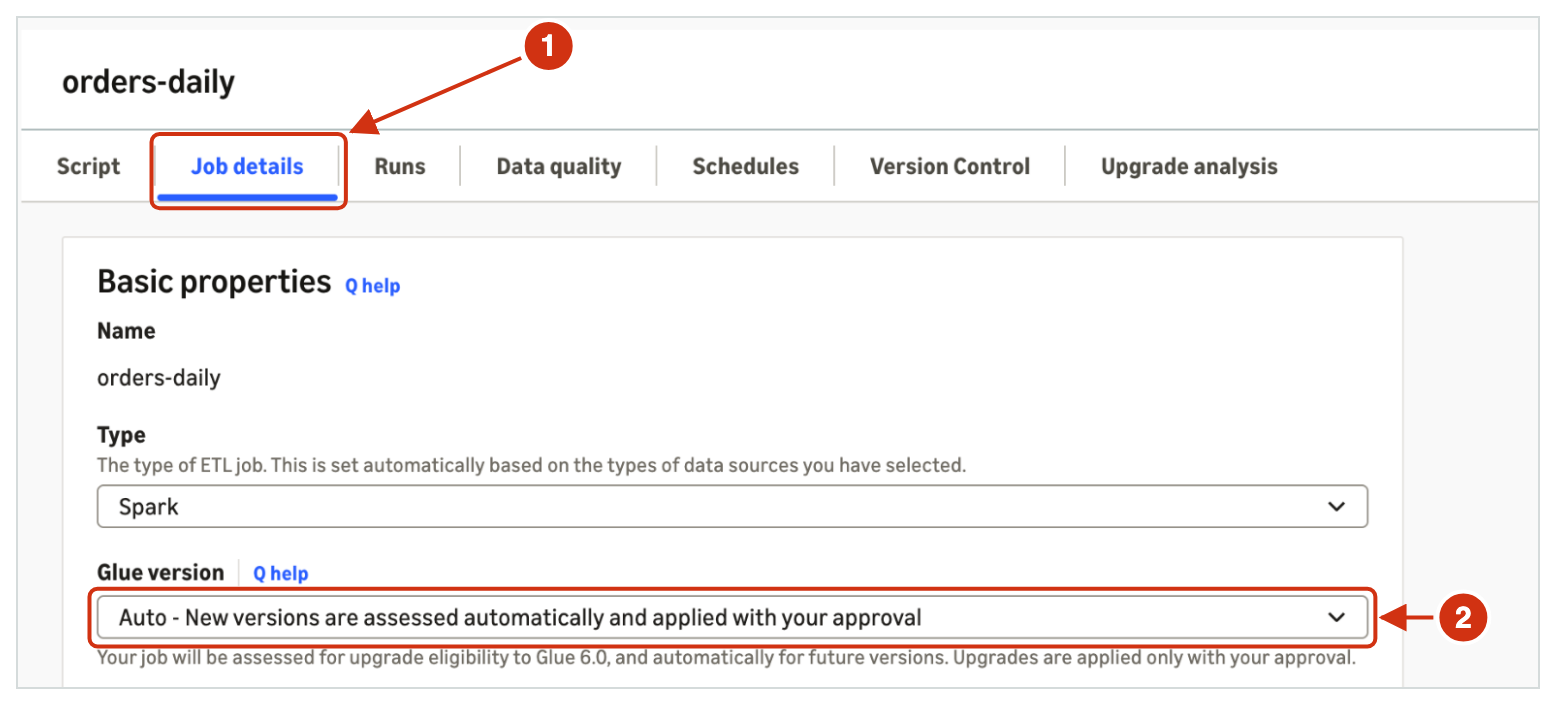
Figure 1: The Job details tab for orders-daily, with AWS Glue version set to Auto
Approve or decline the upgrade
When AWS Glue finishes the compatibility checks and finds no blocking issues, the job waits for your approval.
- Choose the job, and then choose the Upgrade analysis tab. The analysis status shows Waiting for consent.
- In the Upgrade consent required banner, choose eligibility summary, and review the summary.
- Choose Approve to upgrade the job, or choose Decline to keep the job on its current version.
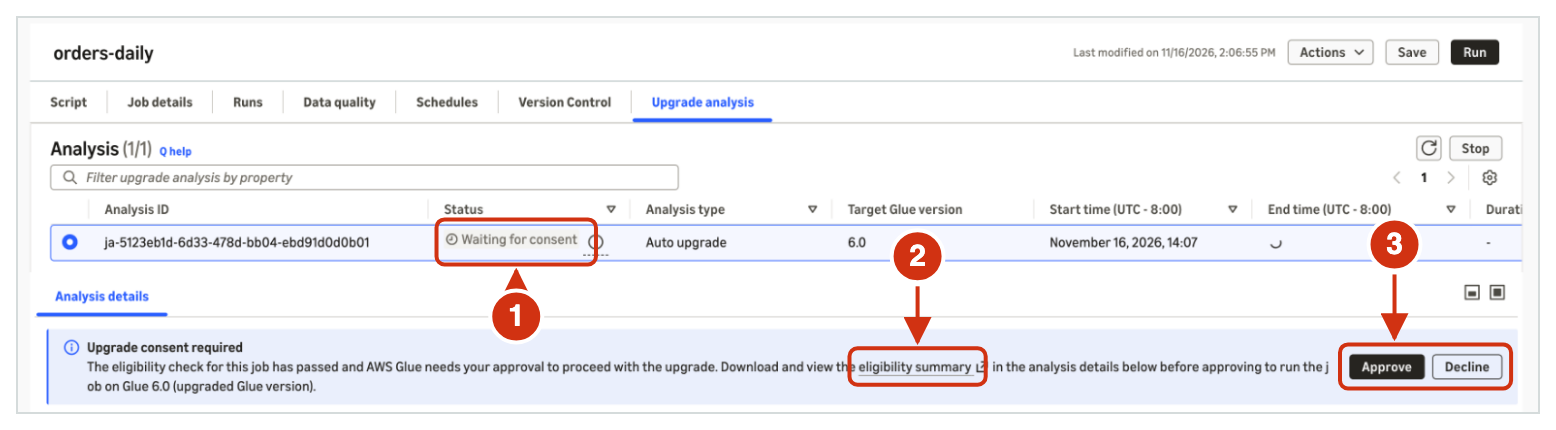
Figure 2: The Upgrade analysis tab for orders-daily, waiting for your approval
The eligibility summary shows the job, the AWS Glue versions, and the compatibility results.
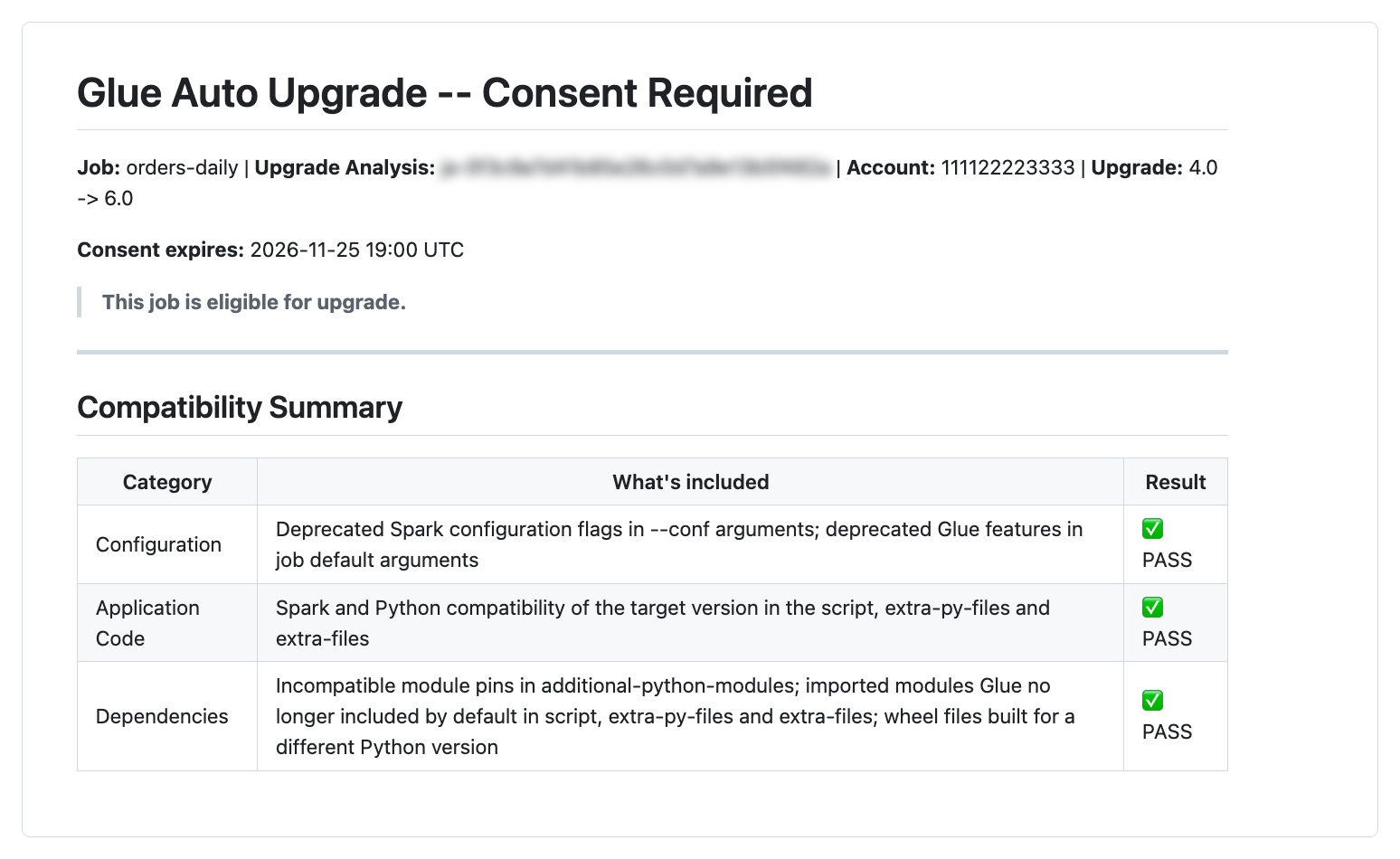
Figure 3: The eligibility summary for orders-daily
Check the result
After the evaluation ends, the Upgrade analysis tab shows the auto upgrade evaluation summary. The summary shows the result for performance, correctness, and cost, with the expected range and each upgraded run’s value for every check.
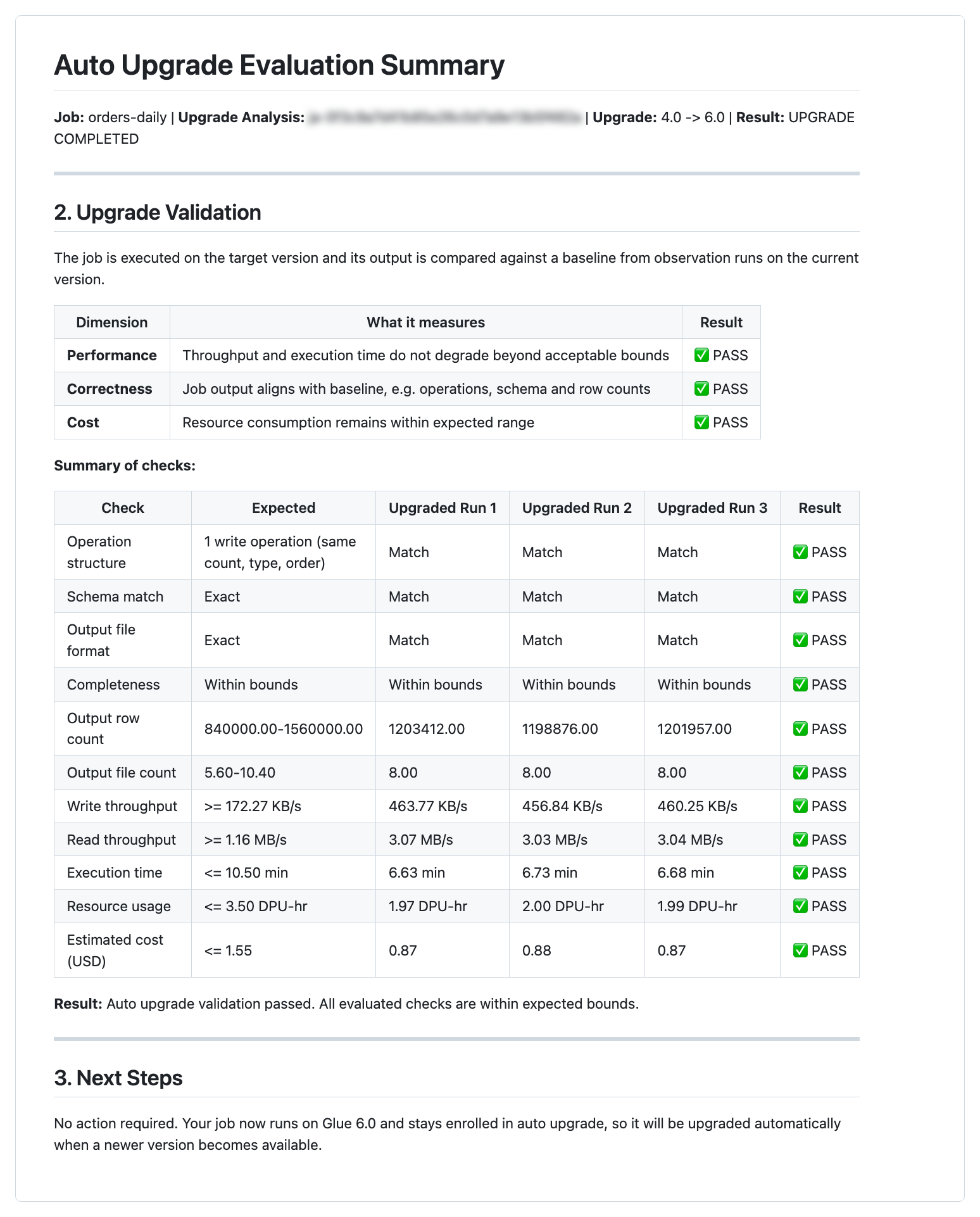
Figure 4: The auto upgrade evaluation summary for orders-daily
Walkthrough: Upgrade a fleet of jobs with an AI agent
When you manage many jobs, an AI agent with the managing-glue-jobs skill assesses, turns on, and approves auto upgrade across your jobs from a few prompts. The agent shows each change and asks for your confirmation before it makes the change.
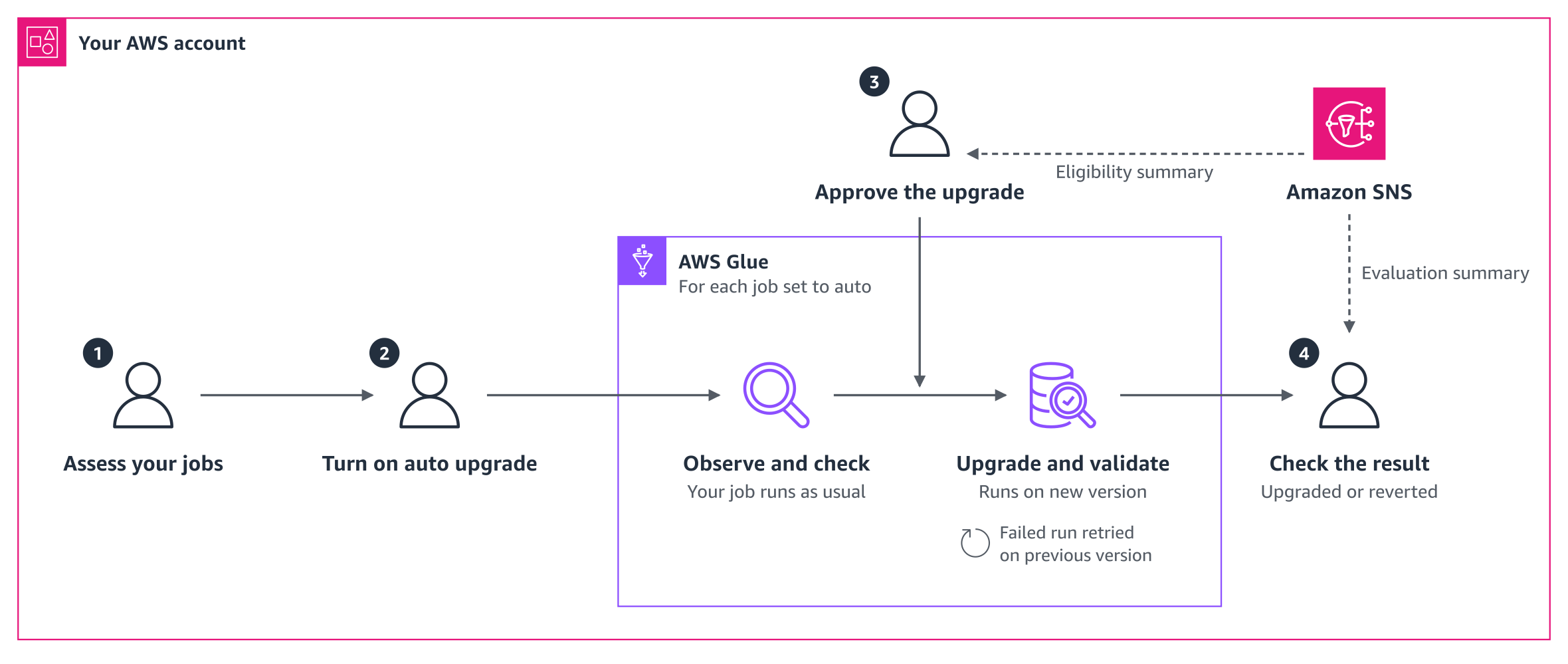
Figure 5: The auto upgrade journey for existing jobs
In this walkthrough, you assess your jobs, turn on auto upgrade, approve the upgrade, and check the result. Between these steps, AWS Glue observes and checks each job, and then upgrades and validates the job. Amazon SNS emails you the eligibility summary and the evaluation summary. The steps that follow match the numbers in Figure 5.
A data team runs three Spark ETL jobs in the US West (Oregon) Region and they want to use AWS Glue version 6.0. The jobs orders-daily and clickstream-agg run on AWS Glue 4.0 and write to Amazon Simple Storage Service (Amazon S3). The job customer-profiles runs on AWS Glue 3.0.
Step 1: Assess your jobs
Ask the agent which of your jobs can use auto upgrade. The assessment does not change anything in your environment, so it’s safe to try first. The agent checks each job against the requirements and runs a compatibility assessment. The agent then lists the jobs that can move to AWS Glue 6.0 and asks you to confirm that each job is safe to retry.
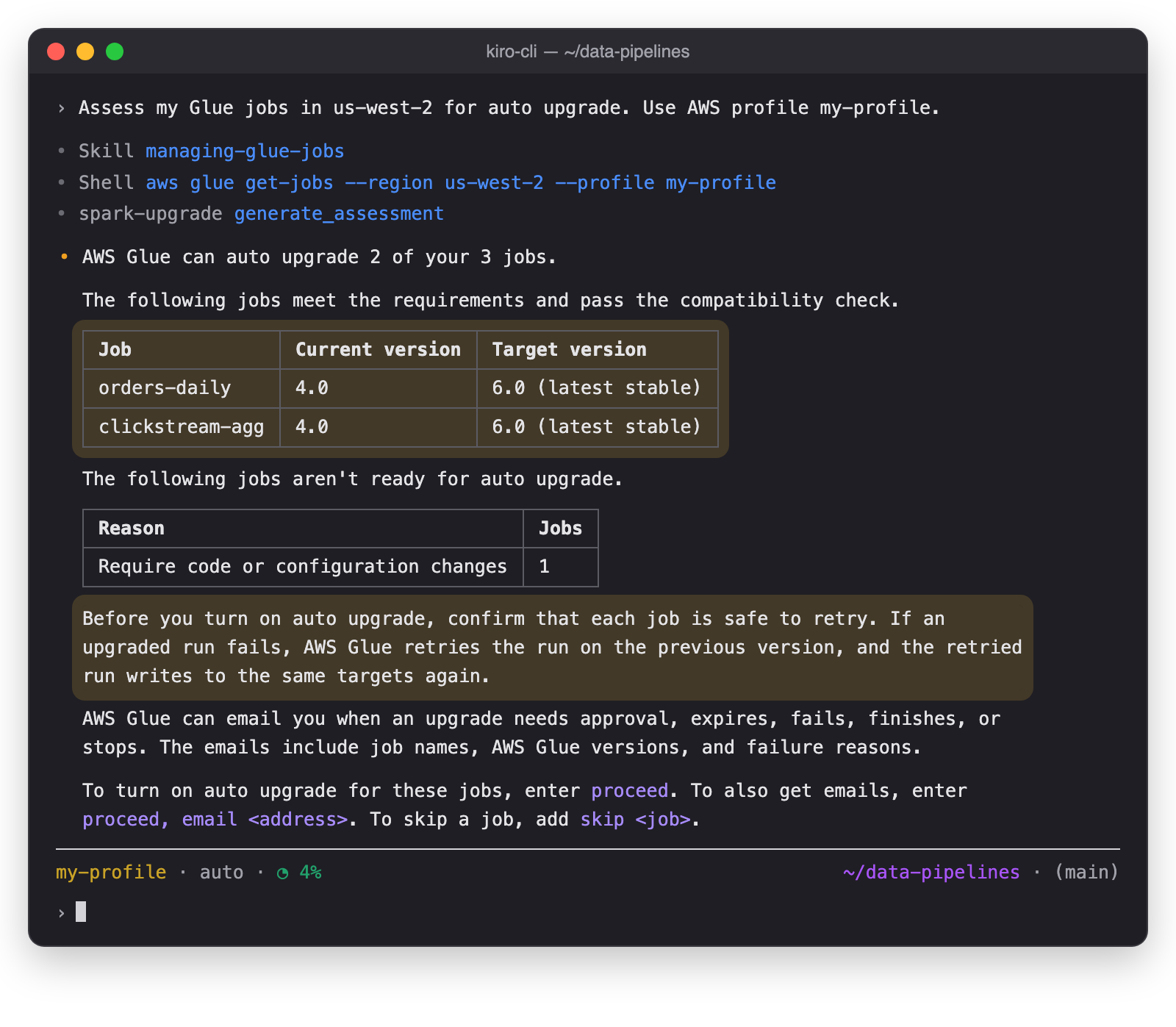
Figure 6: The agent assesses the jobs
To see which job isn’t ready and why, ask the agent. The agent names the setting that blocks the upgrade and the fix.
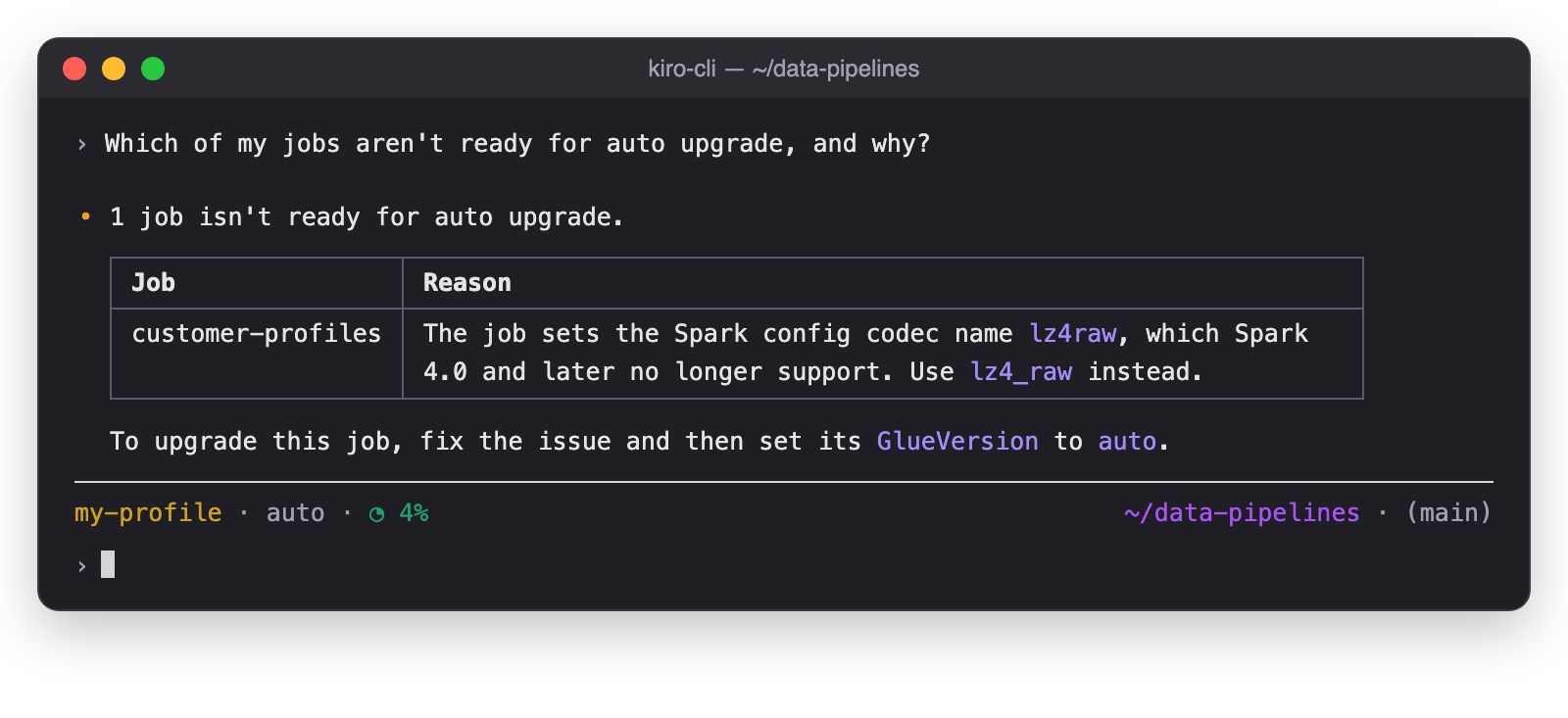
Figure 7: The agent explains why a job isn’t ready
After you update the setting, set the AWS Glue job customer-profiles to auto. For jobs whose code must change, use generative AI upgrades for Apache Spark in AWS Glue.
Step 2: Turn on auto upgrade and set up email notifications
Ask the agent to turn on auto upgrade and set up email notifications in one prompt. The agent sets up the email notifications and sets GlueVersion to auto for each job. The jobs keep running on AWS Glue 4.0 until you approve an upgrade. To get the email notifications, confirm the subscription as the reply describes.
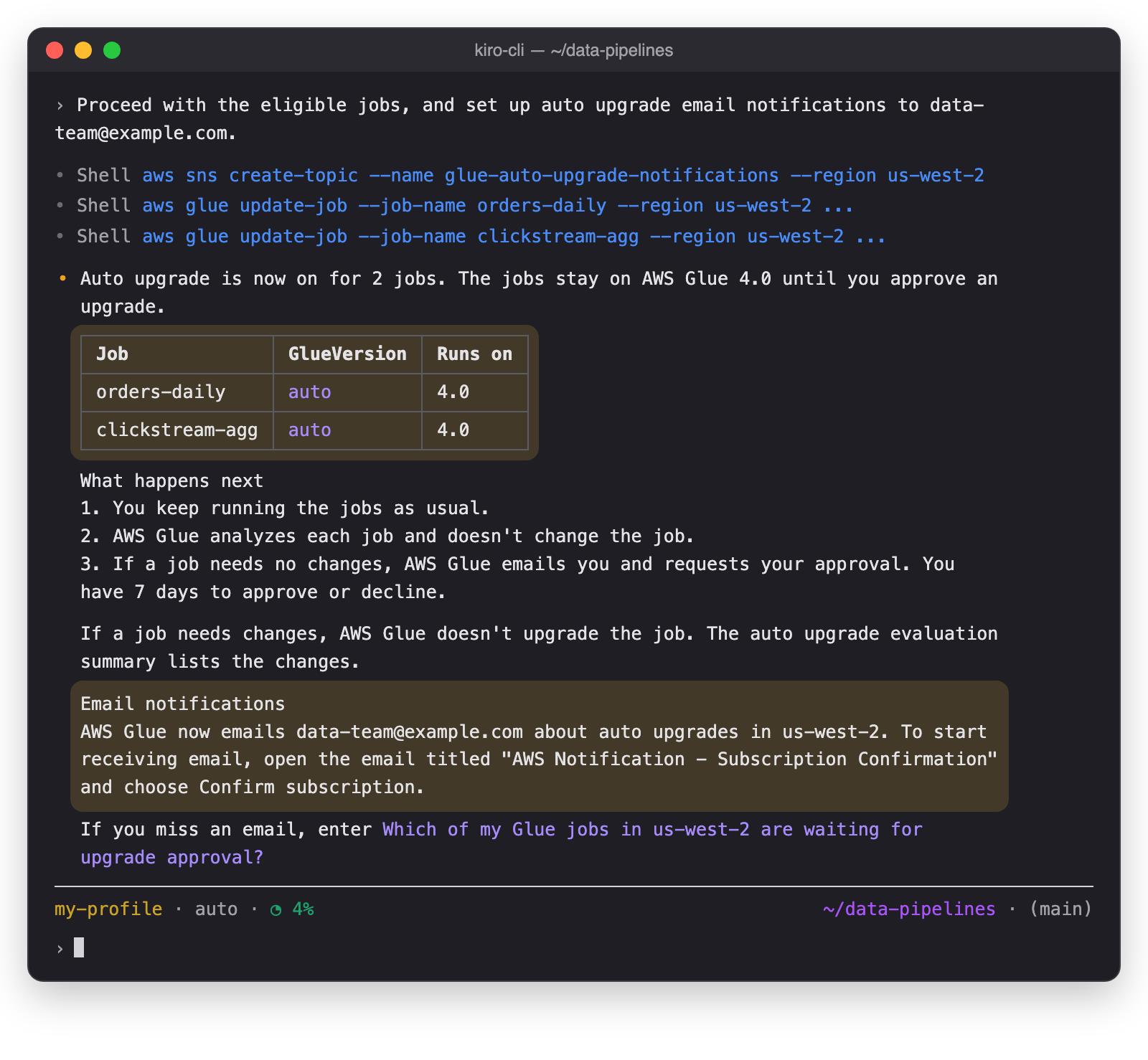
Figure 8: The agent turns on auto upgrade and sets up email notifications
Step 3: Review and approve the upgrade
AWS Glue observes and checks each job in the background, and then you review and approve the upgrade.
Step 3a: AWS Glue observes and checks
You keep running the jobs on their usual schedule. In the background, AWS Glue observes the runs and analyzes each job without changing it. How long this takes depends on how often each job runs.
When a job is ready, AWS Glue emails you and requests your approval. The email names the job and the AWS Glue versions, and links to the job in the AWS Glue console. You have seven days to approve or decline.
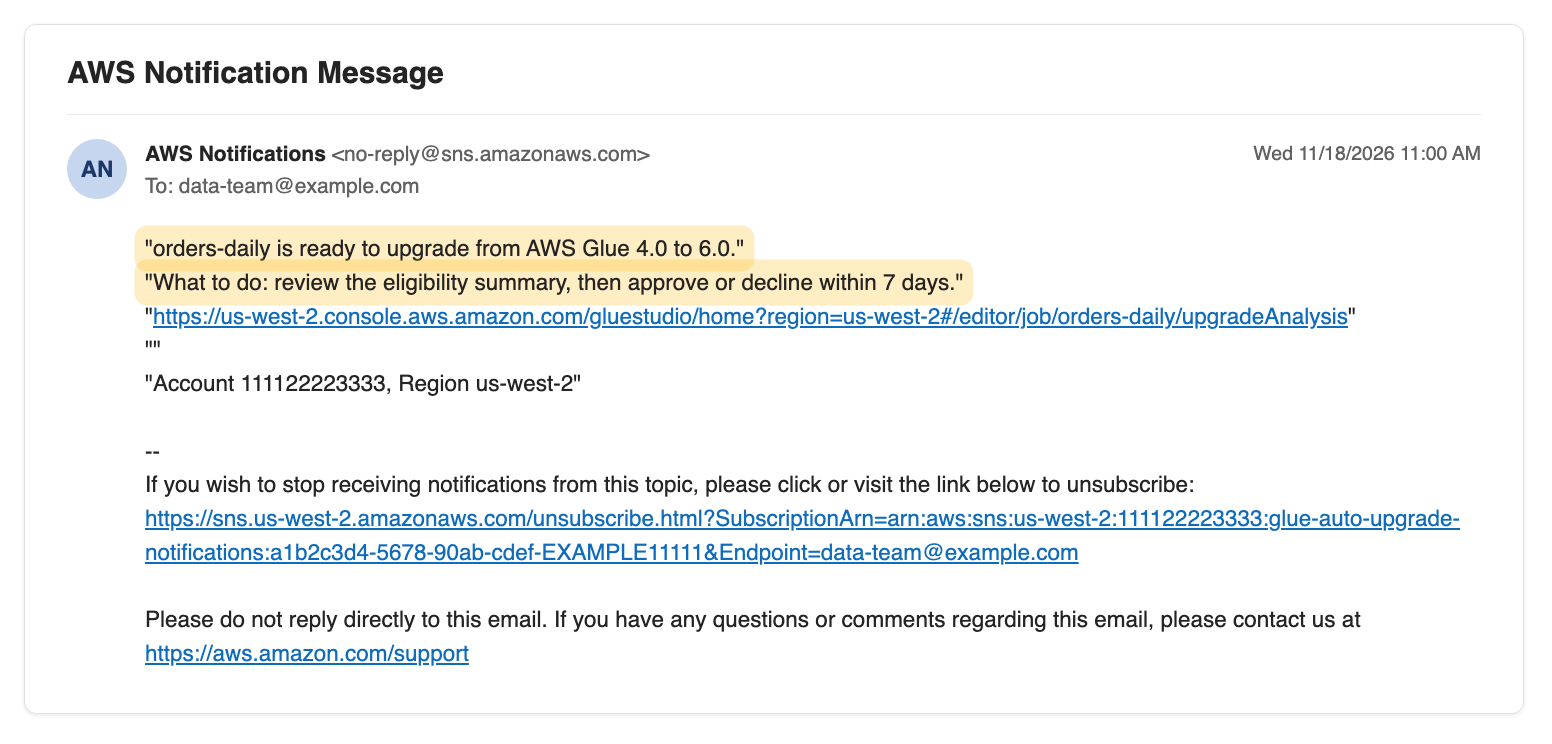
Figure 9: The approval request email
Step 3b: Review and approve the upgrade
Ask the agent which upgrades are waiting. The agent reads the eligibility summary of each job, and then shows the jobs, their write paths, and what to confirm before you approve.
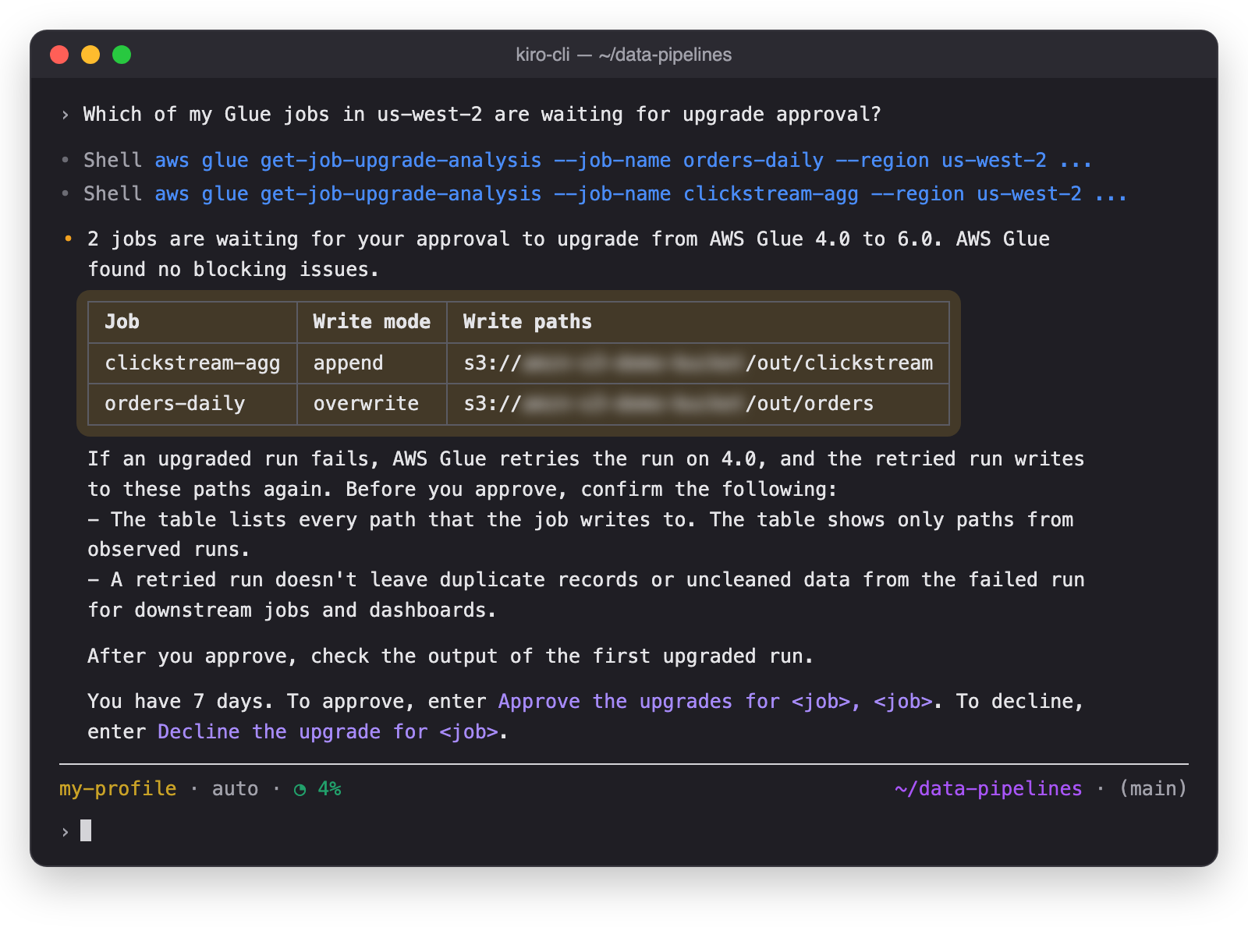
Figure 10: The agent shows the upgrades that wait for your approval
Before you approve, confirm that the reply lists every path that each job writes to. Then approve the jobs in one prompt, and name each job that you approve.
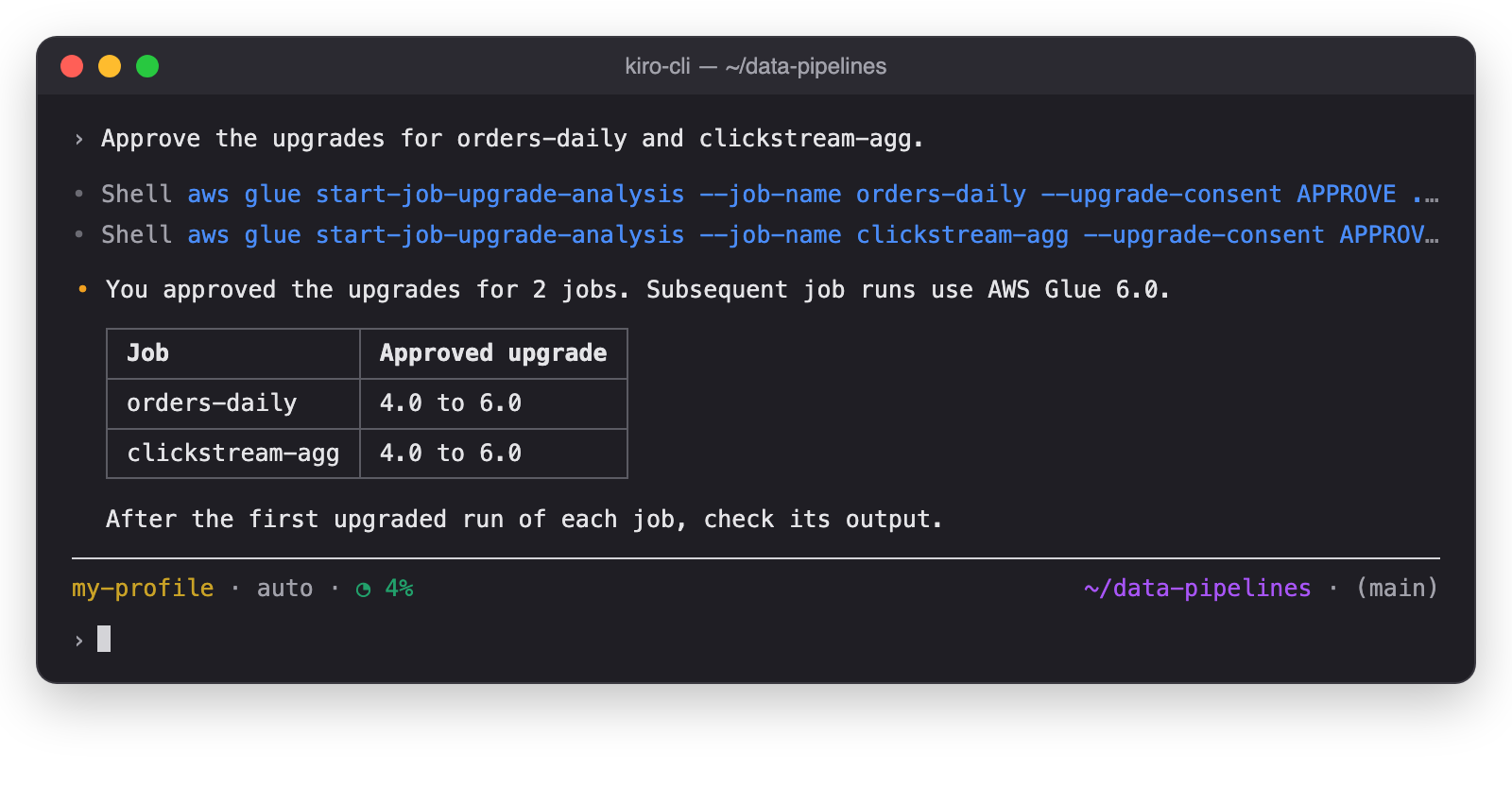
Figure 11: The agent approves the named jobs
The agent approves only the jobs that you name, and only jobs from the review that it showed you.
Step 4: Check the result
AWS Glue upgrades and validates each job, and then you check the result.
Step 4a: AWS Glue upgrades and validates
After you approve, subsequent runs of each job use AWS Glue 6.0, and AWS Glue validates the upgraded runs. If an upgraded run fails, AWS Glue retries the run on AWS Glue 4.0 and reverts the job. You don’t need to act in this step.
Step 4b: Check the result
When the evaluation of a job ends, AWS Glue emails you the result. Ask the agent for the result of orders-daily. The agent shows the result of each validation check.
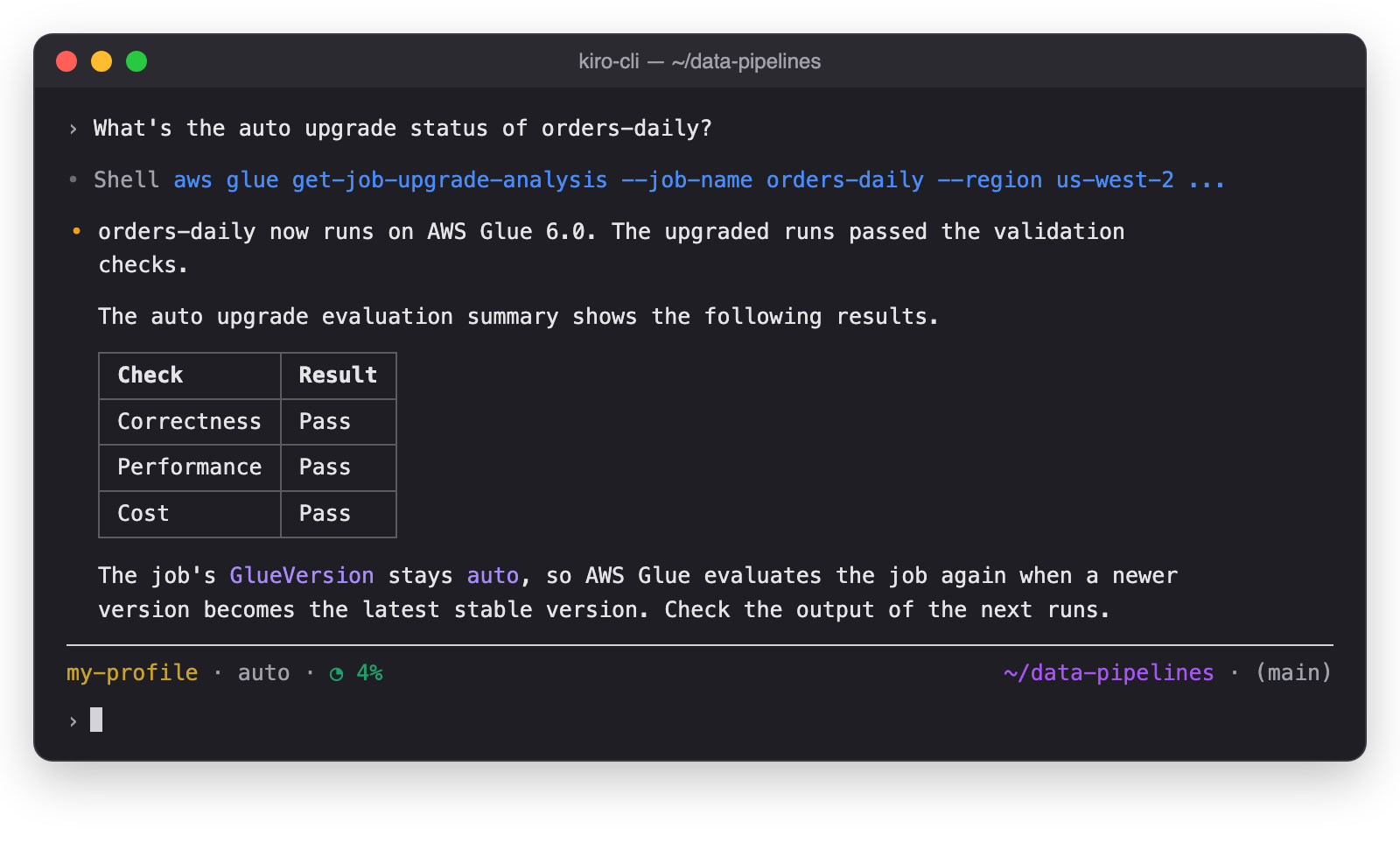
Figure 12: The agent shows the result for orders-daily
Ask the agent about the other job. The agent shows the check that failed and suggests a fix.
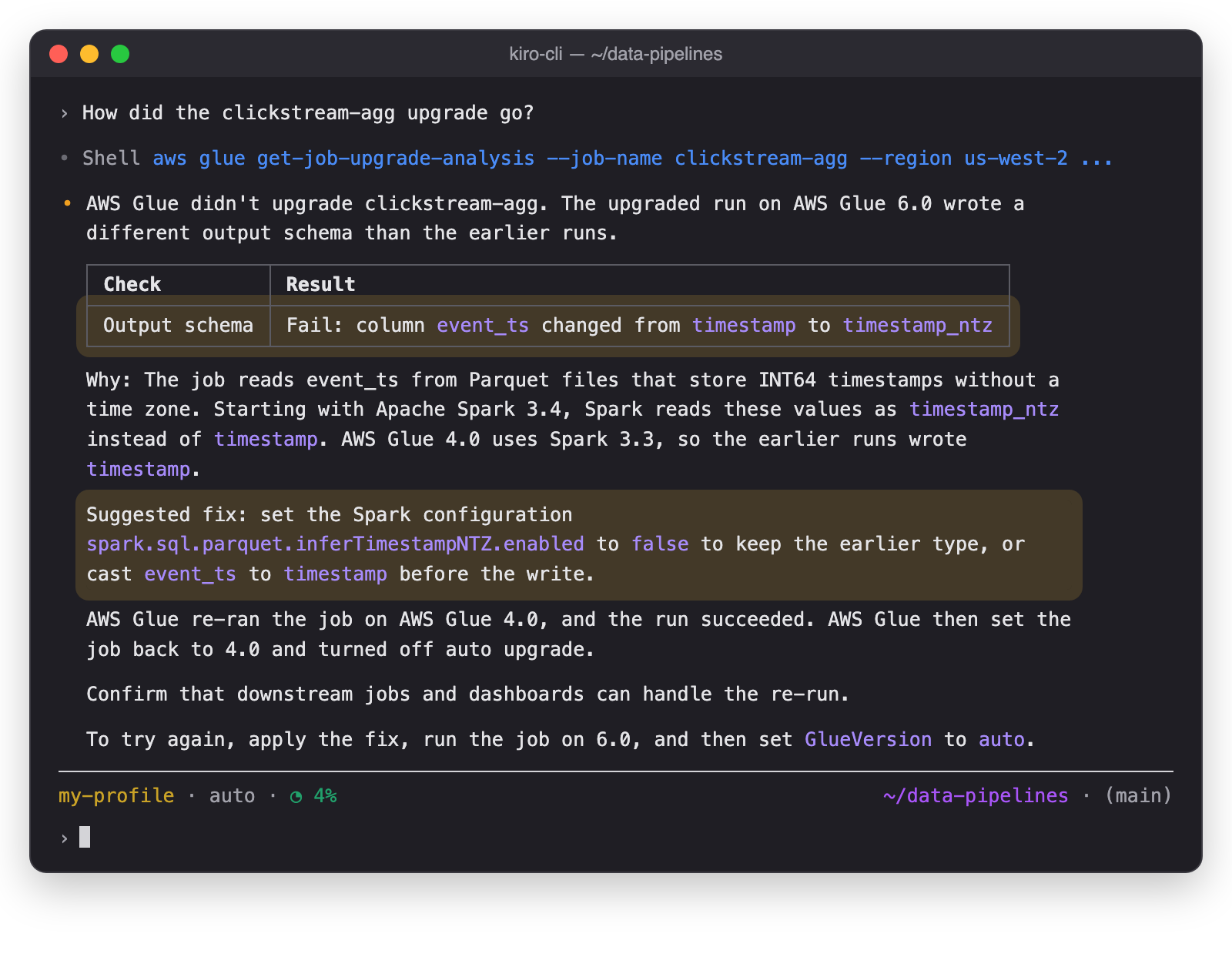
Figure 13: The agent explains why clickstream-agg didn’t upgrade
Your pipeline continues to run on AWS Glue 4.0. The auto upgrade evaluation summary shows what changed, so you can fix the job before you try again.
Conclusion
In this post, we showed how automatic version upgrades for AWS Glue jobs keep your Apache Spark jobs on the latest stable AWS Glue version. You used an AI agent to assess your jobs and turn on auto upgrade with email notifications. You then reviewed the eligibility summary, approved the upgrades, and checked the results in the auto upgrade evaluation summary.
With auto upgrade, your team no longer needs to plan and run an upgrade project for each job. AWS Glue analyzes each job and checks the upgraded runs against the job’s earlier runs. Your team reviews and approves each upgrade. This way you keep your whole fleet of AWS Glue jobs current instead of upgrading one job at a time.
Some jobs need code changes before they can move to a new version. For those jobs, use generative AI upgrades for Apache Spark in AWS Glue, which proposes and validates the code changes for the new version. After you update the code, set the job’s GlueVersion to auto so that AWS Glue keeps the job current from then on.
Auto upgrade is available today in all commercial AWS Regions. For the list of Regions, see Considerations and limitations in the AWS Glue User Guide. To get started, ask an AI agent with the managing-glue-jobs skill to assess the AWS Glue jobs in your account. Try auto upgrade, and share your feedback in the comments.
Special thanks
A special thanks to everyone who contributed from Engineering and Science to the launch of automatic version upgrades: Ezgi Maden, Akshara Ganapathi, Tina Shao, Raghavendhar Thiruvoipadi Vidyasagar, Shoukat Ghouse, David Zhang, Suthan Phillips, Prasad Nadig, Syed Mahmood, Karthik Seshadri, Pradeep Kumar Nalluri, Adam Rohrscheib, Eric Zhang, Tayo Adedokun, Weston Dunn, Kartik Panjabi, Shubham Mehta, Bryan Liles, Steffen Rochel, Kinshuk Pahare, Paul Meighan, and Rick Sears