
The world of augmented reality (AR) and extended reality (XR) glasses is really starting to get interesting. This is particularly true of so-called “self-contained” systems that don’t rely solely on your smartphone or tablet to deliver content. The Xreal Aura, which was co-developed with Google, is the latest in the Android XR field, and it’s quite an ambitious project.
Although the Aura looks somewhat similar to previous Xreal glasses that we’ve reviewed, the AR goes a step further with a dedicated puck powered by a Qualcomm Snapdragon Reality Elite SoC, hand/finger tracking, and the ability to interface wirelessly with accessories like keyboards and gamepads. The Aura really promises the ability to leave your smartphone at home and serve as the only computing platform you need (with some caveats).
Design of the Xreal Aura
The Aura’s design is clearly an evolution of the Xreal One Series, but with a few key differences. You’ll find the main changes up front, where you’ll now find two forward-facing, high-precision tracking cameras mounted at the corners of the frame. These cameras are used to continually track your head position, giving you the best possible experience for 6 degrees of freedom tracking for your hands and fingers.
At the center of the frame, there is a fully integrated single high-resolution camera for capturing photos or video. This was previously a separate add-on module for Xreal One Series AR glasses. There’s a red LED that illuminates when you’re recording so that people around you are made well aware of what’s going on if they have objections.
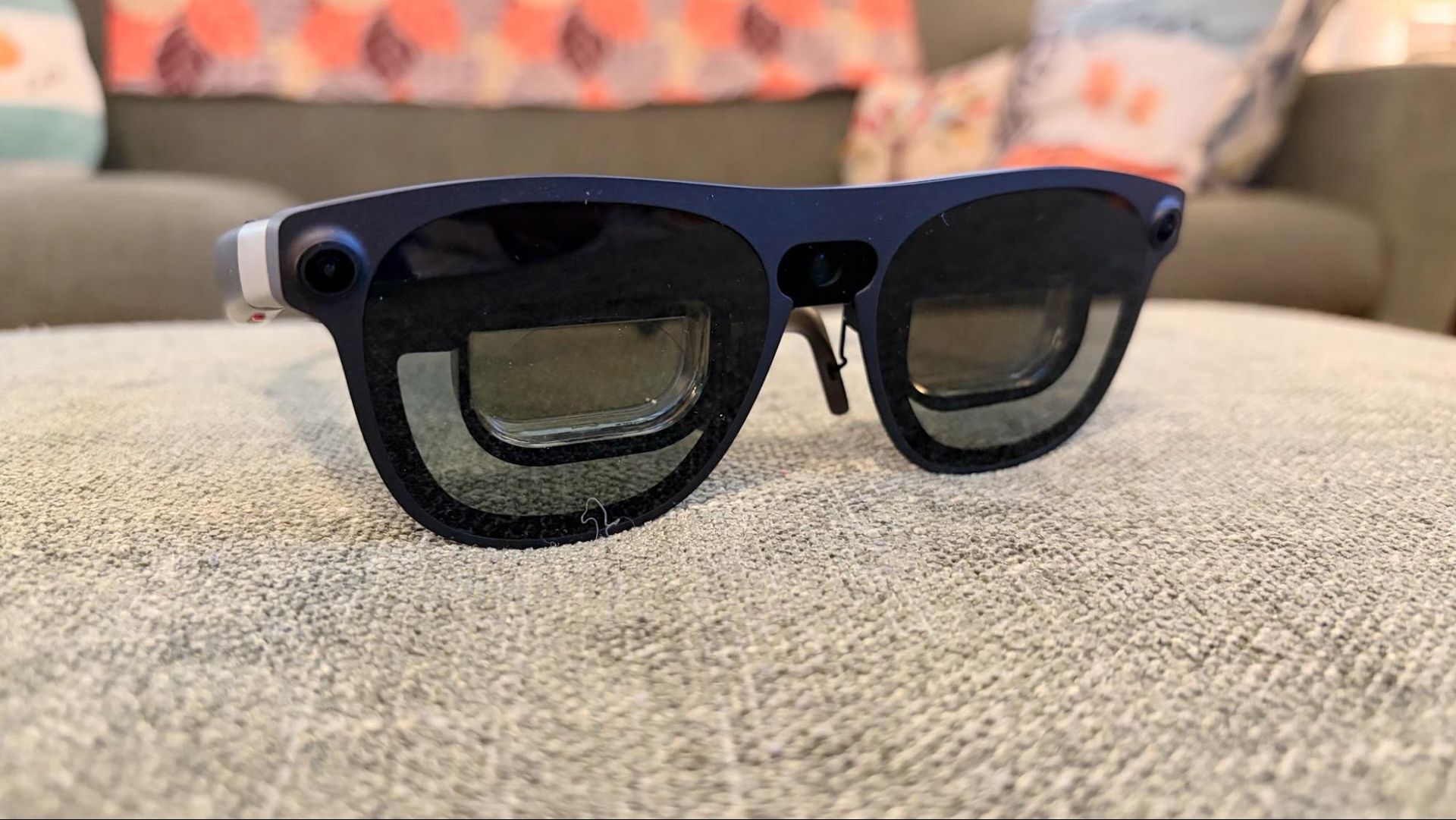
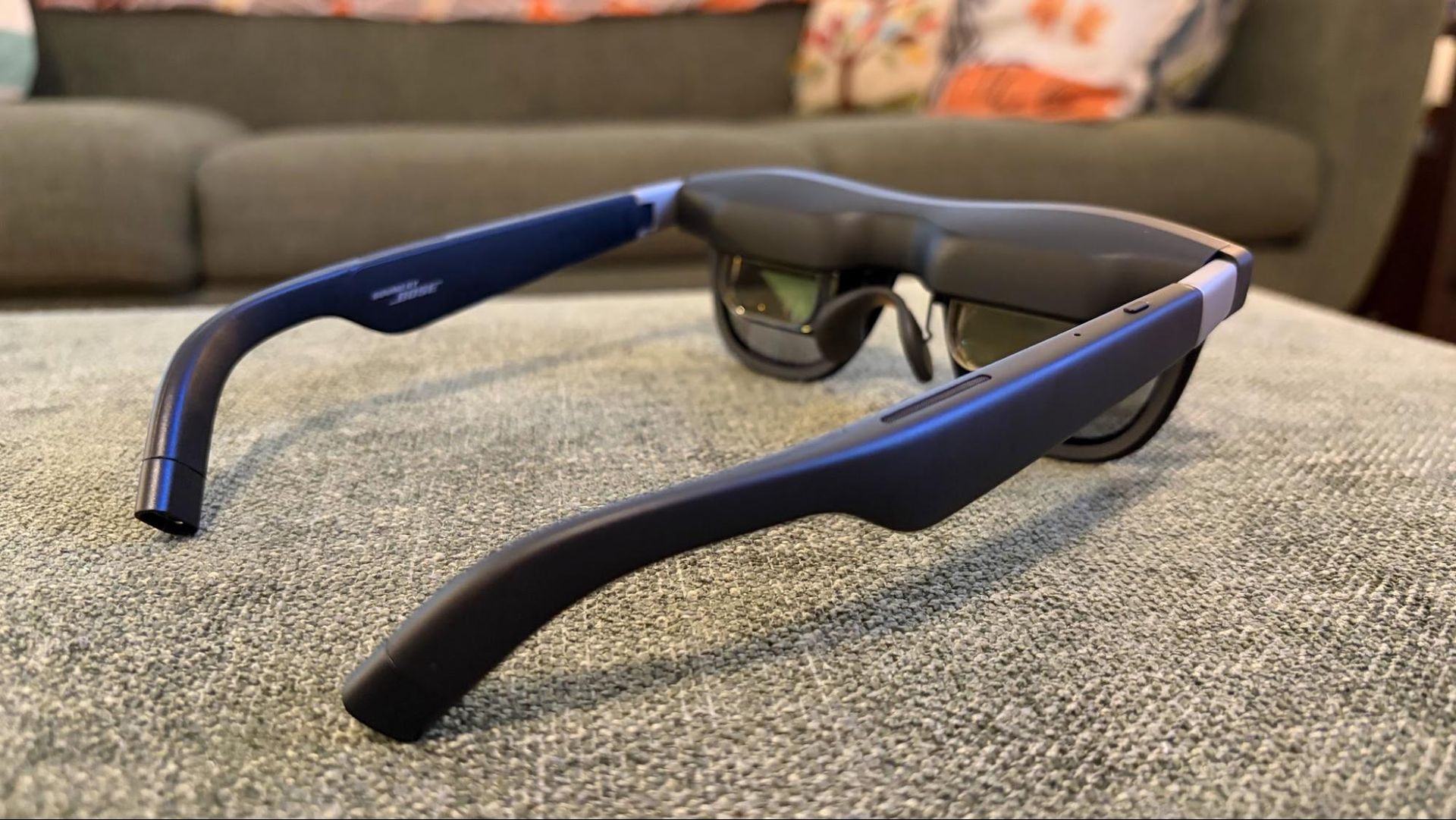
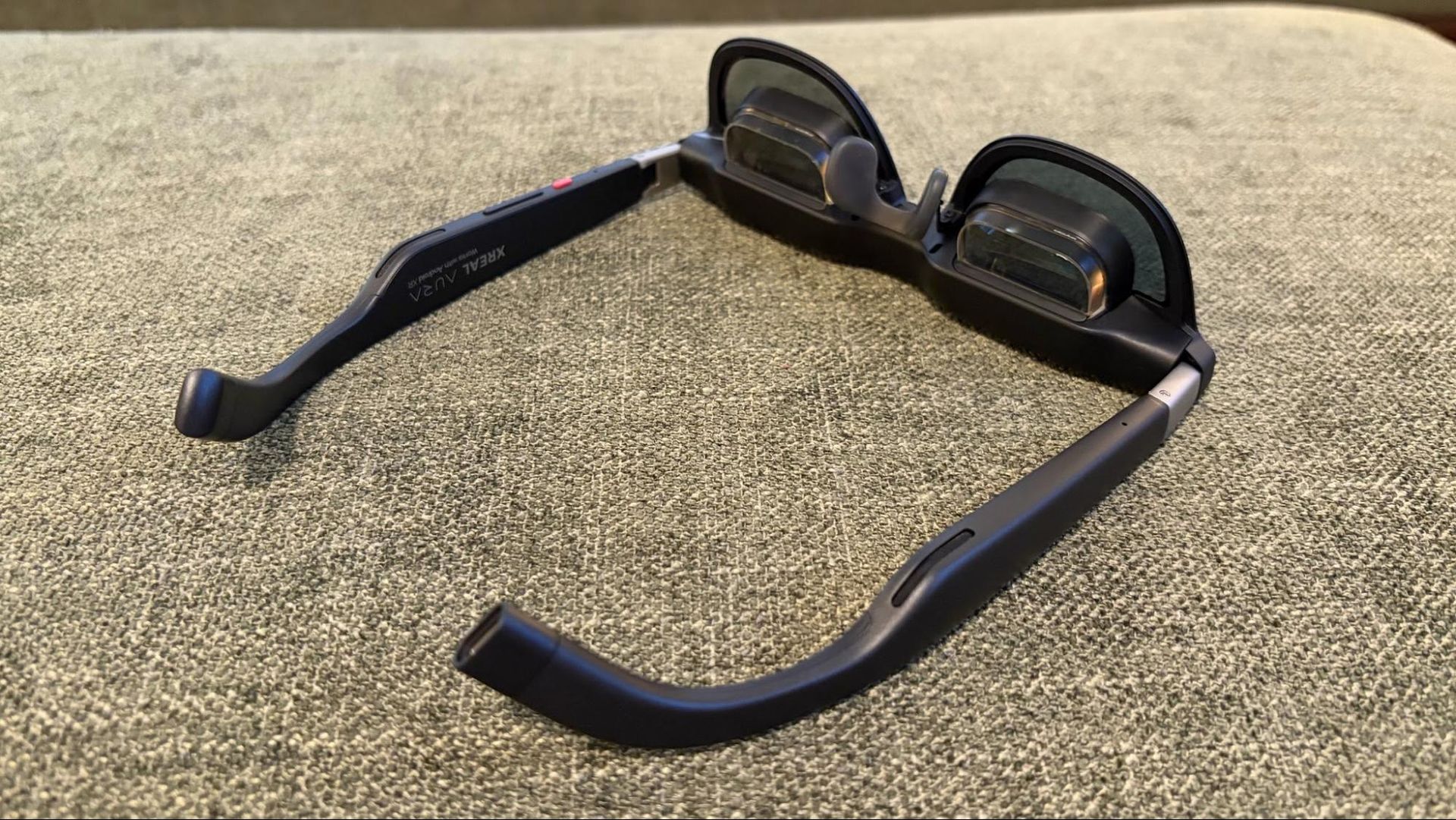
Your primary focal point, however, will be looking through the lenses, which are augmented by dual Sony-manufactured micro-OLED displays. You get one micro-OLED display per eye, each offering 1920 x 1200 resolution, a 120 Hz refresh rate, and maximum brightness of 1,050 nits. However, there’s a major upgrade in the field of view (FoV), as the Aura expands to 70 degrees, up from 57 degrees on the One Pro.
The Aura is available in two SKUs to support the interpupillary distance (IPD) of a wide range of people. The Medium SKU supports people with an IPD of 60 to 66 mm, while the Large SKU ranges from 66 mm to 72 mm.
Given that the Aura is the flagship of Xreal’s AR/XR glasses lineup, it comes with electrochromic dimming for the lenses, which can automatically adjust transparency levels, or you can manually make adjustments (there are five levels of transparency available).
The arms of the Aura look nearly identical to the ones you find on members of the One Series glasses. On the bottom is a red button, which, when pressed, allows you to manually adjust the brightness levels of the Aura. Directly adjacent is a rocker that allows you to control the volume. There’s another button on the top of the right arm that, when pressed once, takes you to the home menu. Double-pressing the button brings up the capture menu for taking pictures or videos with the forward-facing camera.
Bose-tuned speakers are also built into the arms of the Aura and feature an open-ear design so that you can remain engaged with what’s happening in your environment.
Xreal Aura Specifications
Display | 1920 x 1200 per eye |
Display Type | OLED |
Brightness | 1050 nits |
Field of View | 70 degrees |
Refresh Rate | 120 Hz |
Degrees of Freedom | 6 DoF |
Audio | Dual open-air speakers |
Connectivity | USB-C, Bluetooth 5.3, Wi-Fi 6E, GPS |
Weight (Aura glasses) | 3.35 ounces (95 grams) |
Weight (Computing Puck) | 9.3 ounces (265 grams) |
Battery (Computing Puck) | 4,455 mAh |
Xreal Aura Computing Puck
Xreal takes a two-pronged approach to hardware with the Aura. At a base level, the Aura is powered by the X1S Spatial Coprocessor, which allows you to experience traditional AR functionality with smartphones, tablets, PCs, and Macs, as you would with previous Xreal glasses.
But the real magic happens with the Xreal Computing Puck, which is a separate device that connects to the Aura using a USB-C cable. The puck looks and feels like a slightly oversized smartphone, albeit without a display. In place of the display, you’ll find a large touch-sensitive surface that can be used to interface with the Android XR interface.
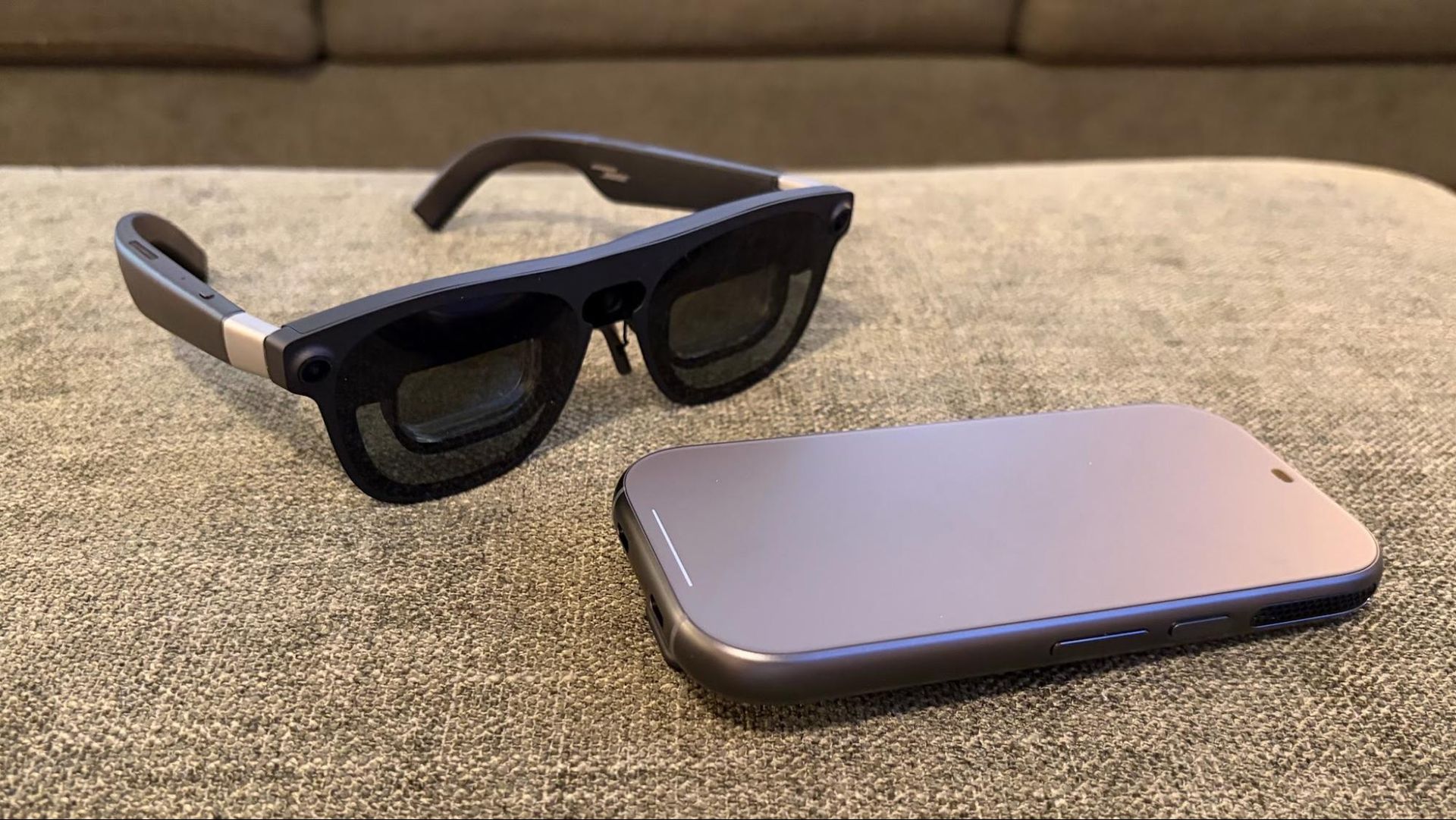
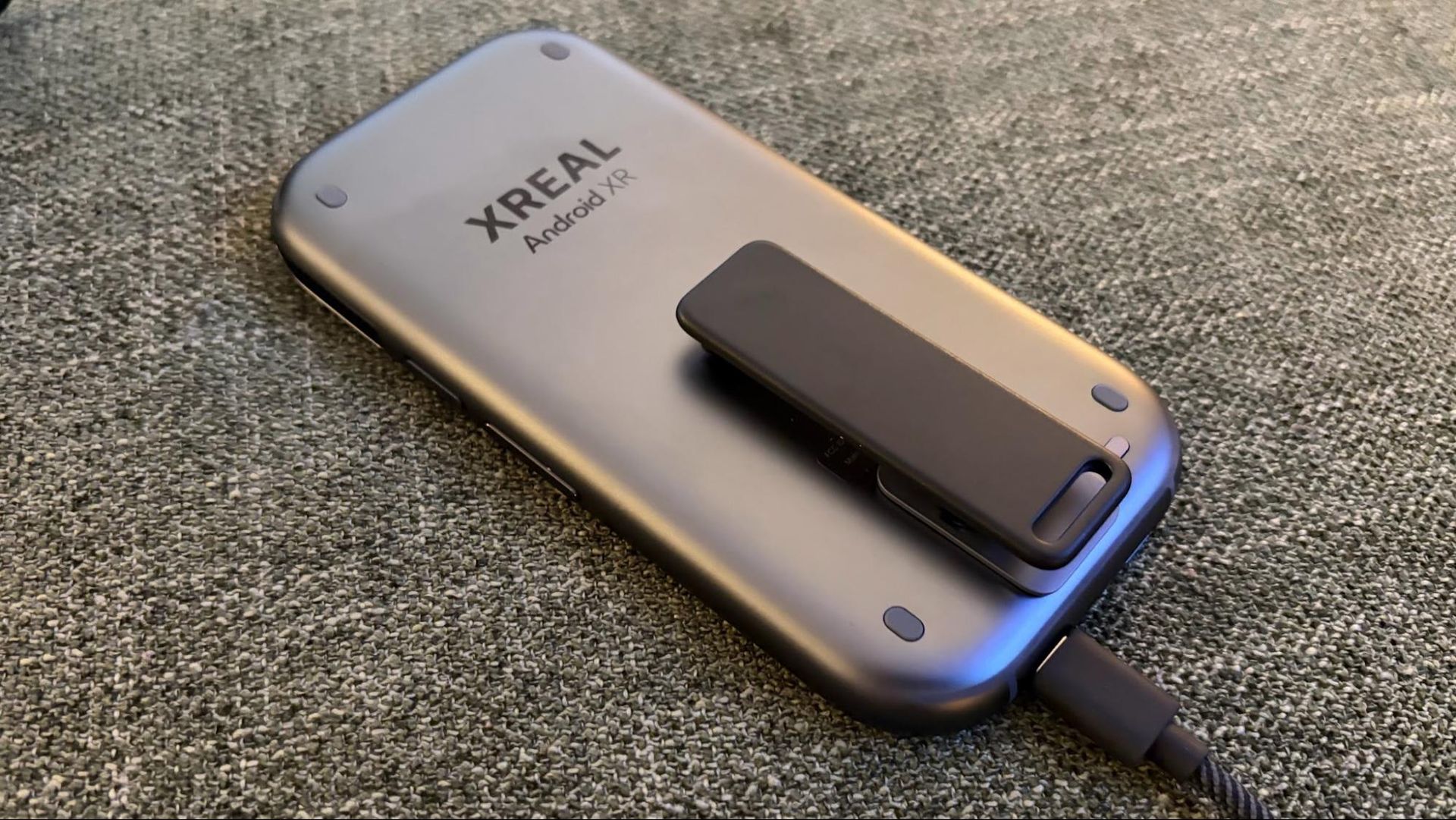
The puck is powered by Qualcomm’s new Snapdragon Reality Elite Platform, which delivers 48 TOPS of AI computing power. It comes in 12GB RAM/256GB storage or 16GB RAM/512GB SKUs — our review unit was spec’d with the former. The puck features a 4,455 mAh battery that powers the glasses, and it even incorporates a fingerprint reader for authentication purposes in Android XR. The puck also fully supports Wi-Fi 6E and Bluetooth 5.3; the latter of which is essential for supporting Bluetooth accessories.
The puck is quite beefy, measuring roughly 5.85 x 2.85 x 0.5 inches and weighing 9.3 ounces. I had no issue just slipping the puck into my pants pocket, but Xreal also includes a detachable clip if you want to attach it to your pants pocket or other clothing. The puck also features a cooling fan to keep temperatures in check. Indeed, the device can get warm to the touch (after all, it’s basically a powerful screenless smartphone with a 4,455 mAh battery) during use – which explains why Xreal includes the clip and probably doesn’t want you putting the puck in your pocket, like I was prone to do.
Xreal Game Controller and Keyboard
My Aura review unit also came with an Xreal Keyboard and an Xreal Game Controller. Both connect to the Aura using Bluetooth and were easily set up by pairing them within the Bluetooth menu under Settings.
The keyboard is battery-powered and is recharged using a USB-C port at the top (just above the F7 key). It’s a nifty design that neatly folds when not in use. Interestingly, I couldn’t find a way to “lock” the hinged part of the keyboard when it’s fully extended. Because of this, you can’t use the keyboard sitting on your lap with your legs spread slightly apart, as the keyboard will simply collapse and fall to the floor if you apply any kind of pressure. You’ll either need to put your legs together or place the keyboard on a desk or table, which isn’t exactly ideal if you like the more “freeing” aspect of using XR glasses.
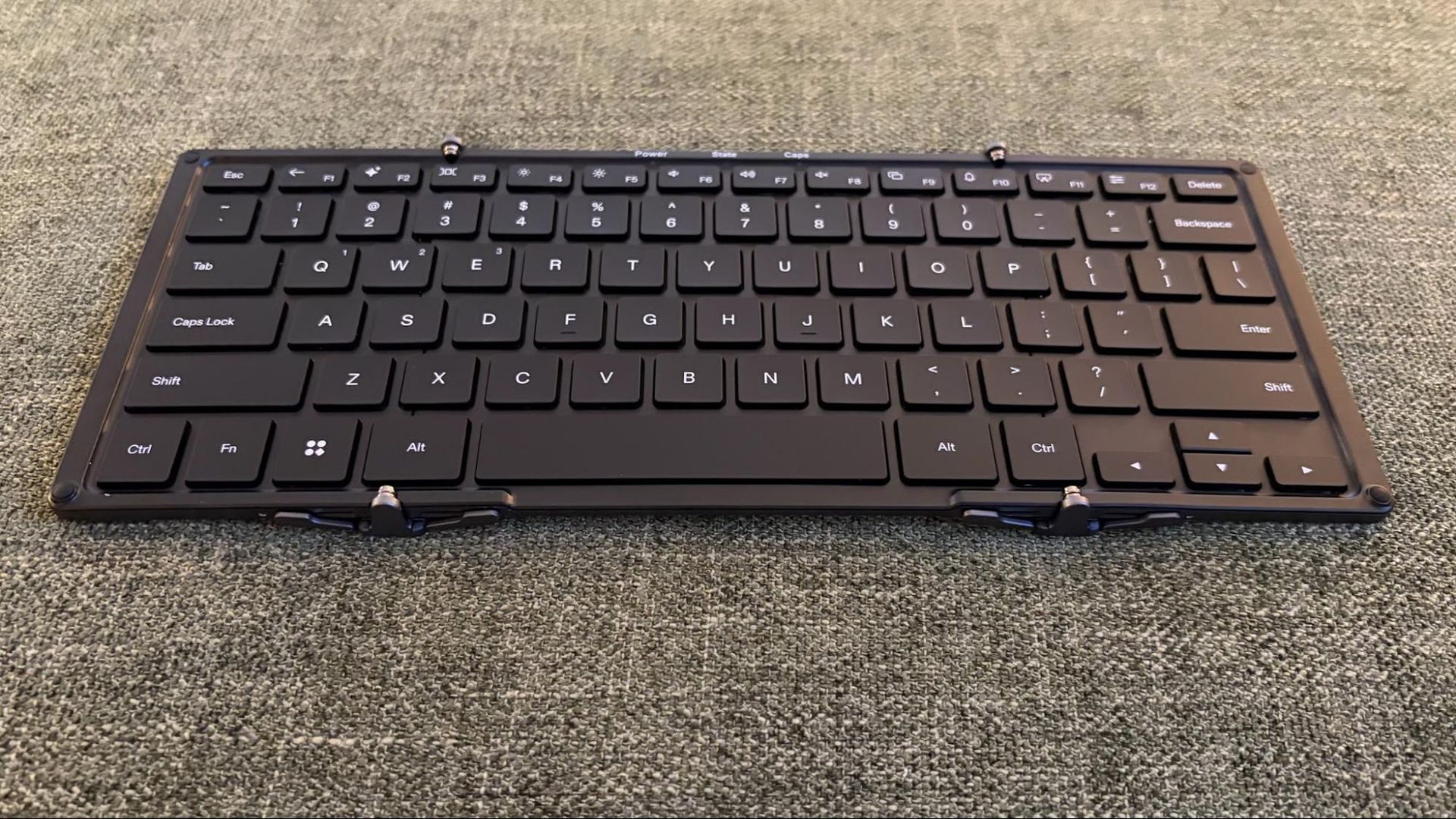
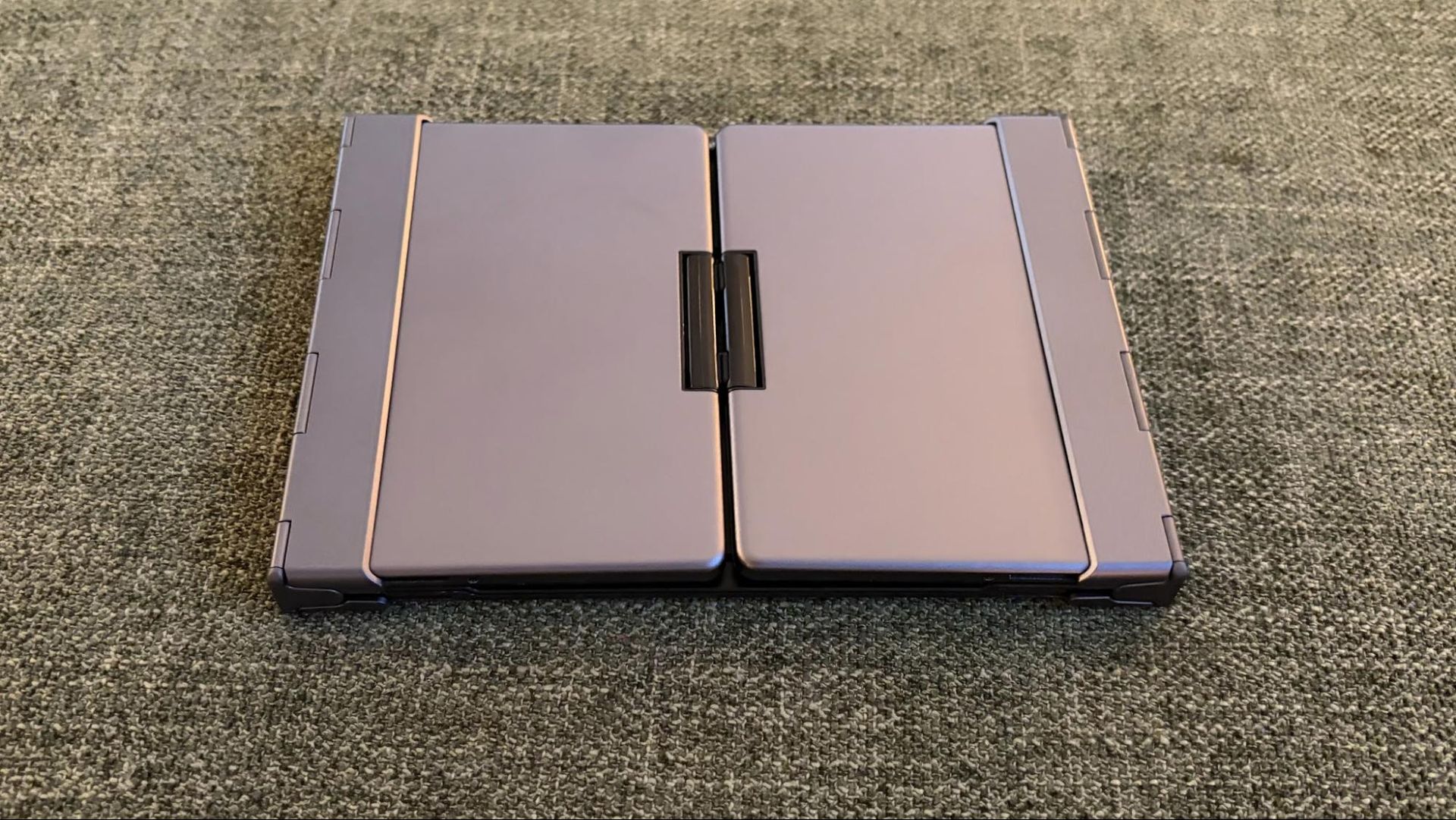
With that said, the keyboard is a lifesaver when it comes to text entry, be it for entering web addresses, writing emails, or anything that requires frequent use of the keyboard. It sure beats waving your fingers around to input text.
The game controller features an Xbox-style layout with four face buttons for gaming, two thumbsticks, a D-pad, and a Google Gemini/Home button. There are two shoulder buttons at the top and two triggers (with modes to function as microswitch triggers or Hall Effect analog triggers). There are also two remappable macro buttons under the shoulder buttons and two additional macro buttons on the underside of the controller (which can be turned off with physical switches).
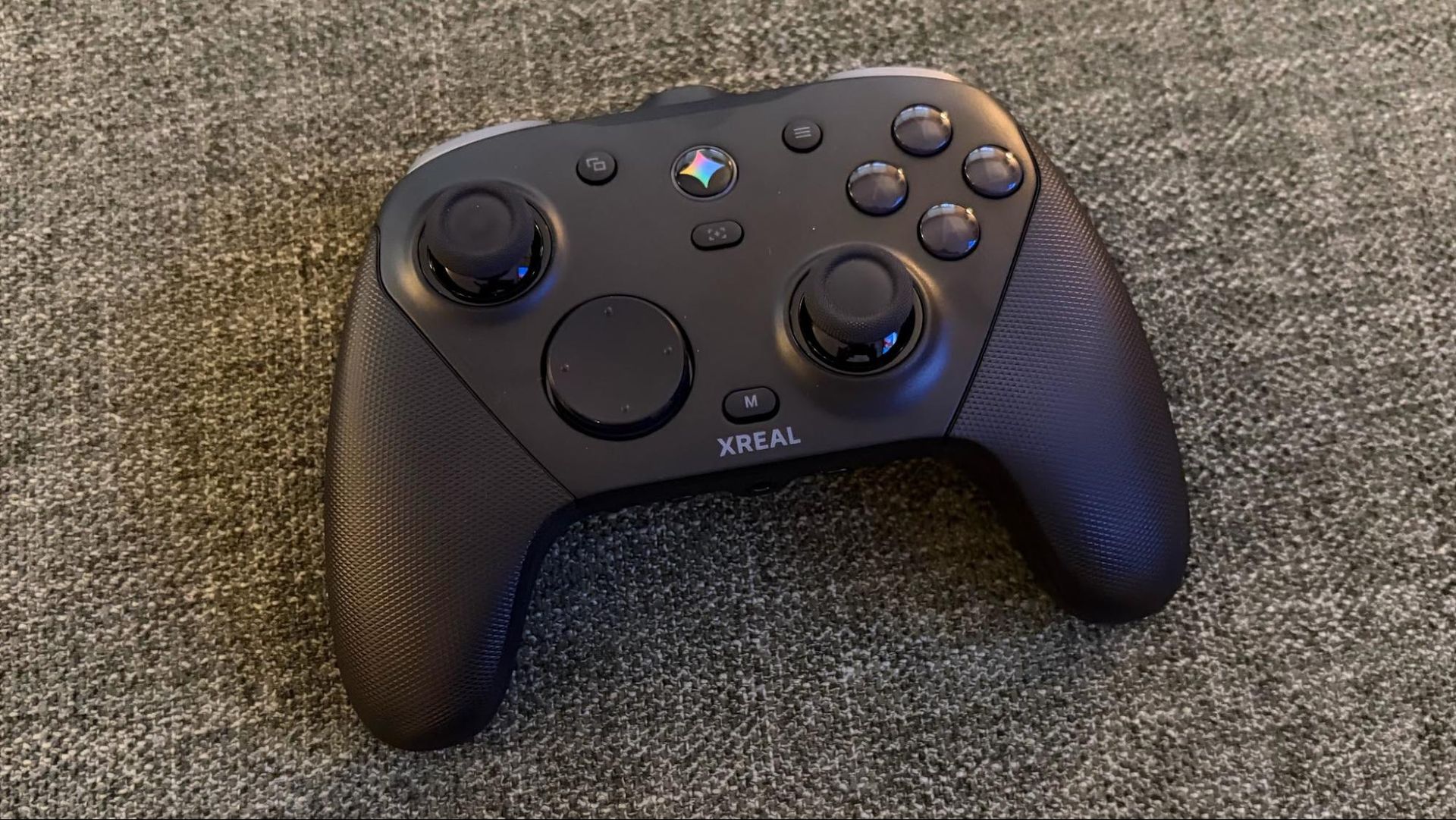
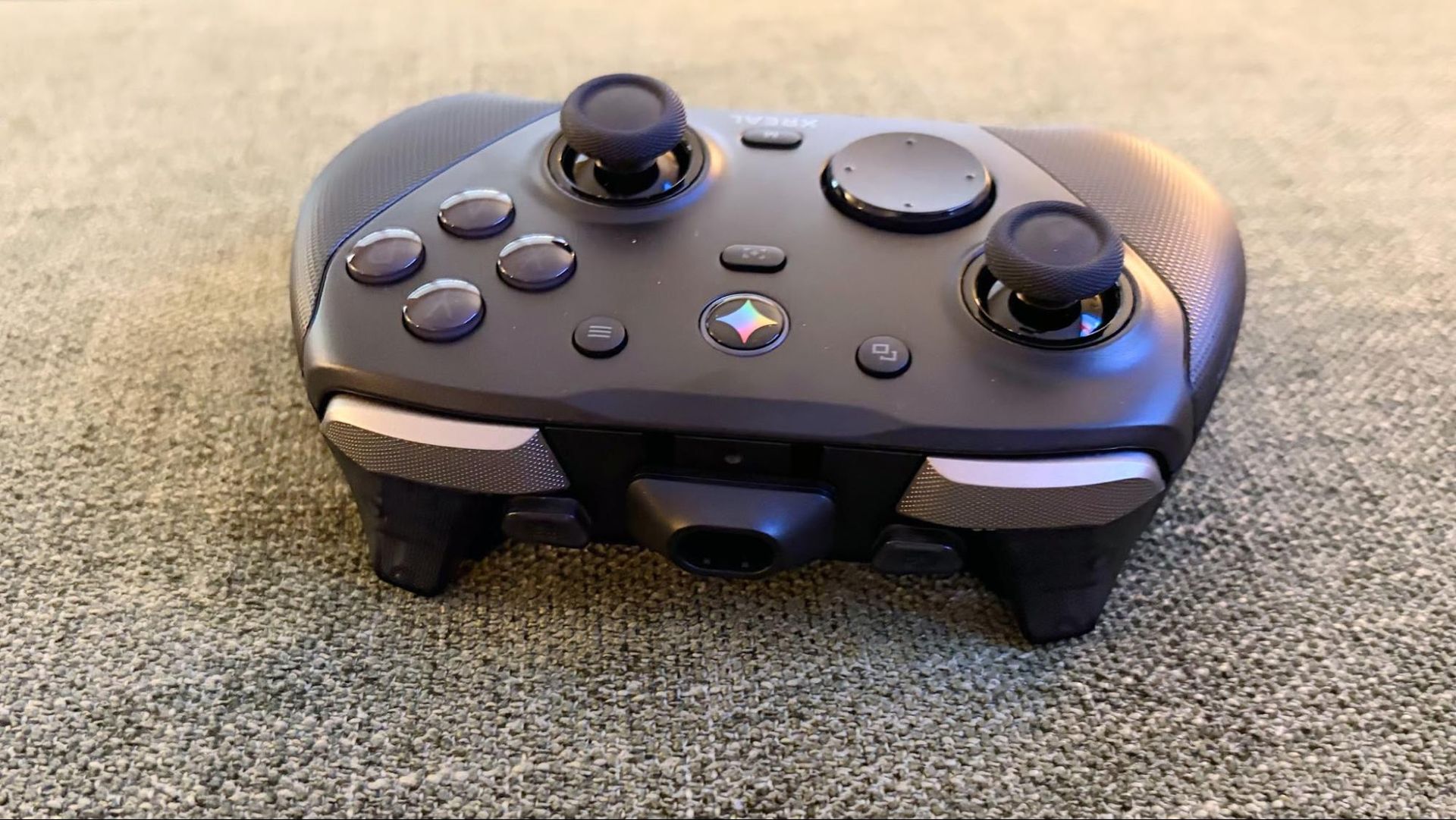
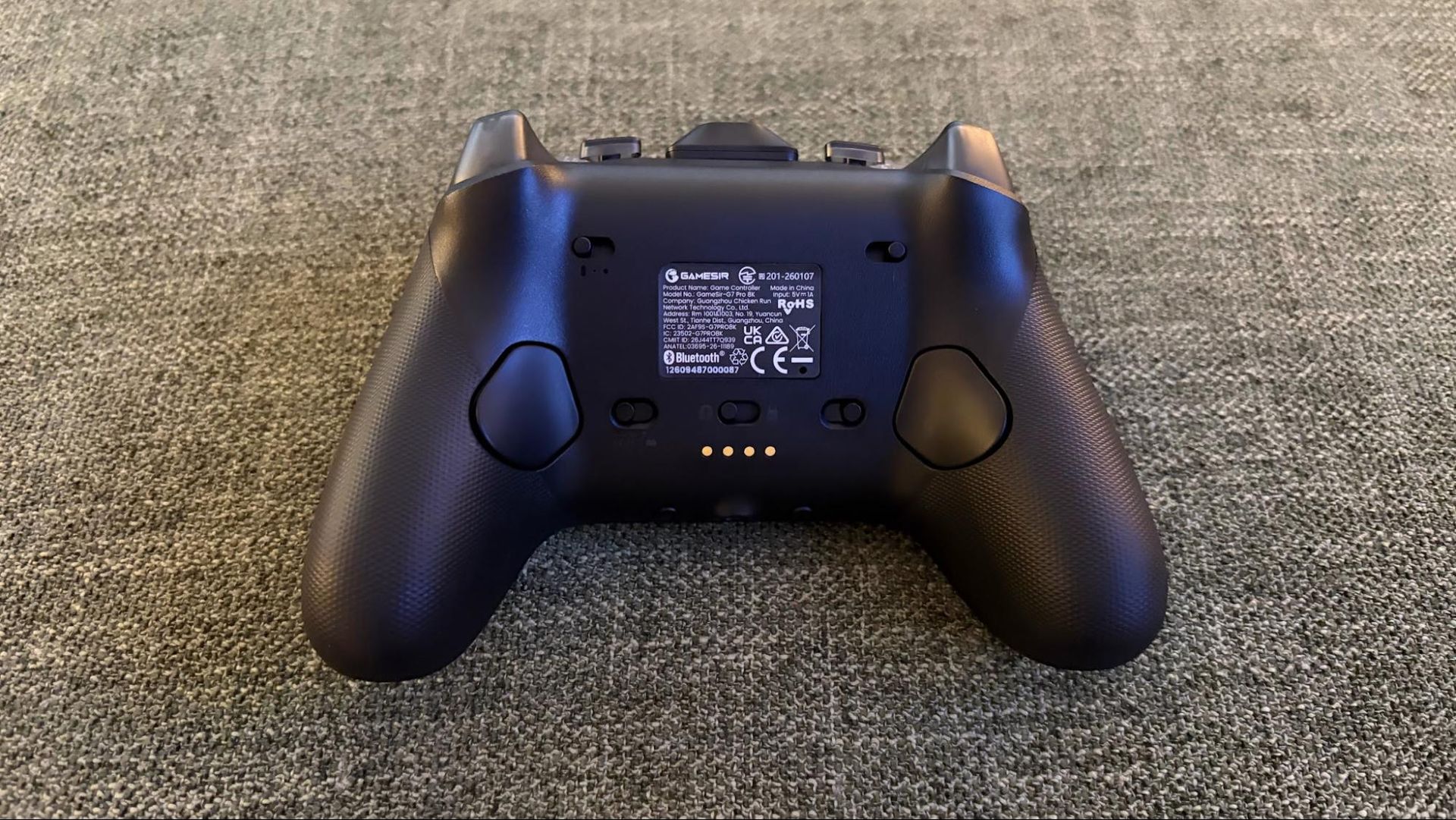
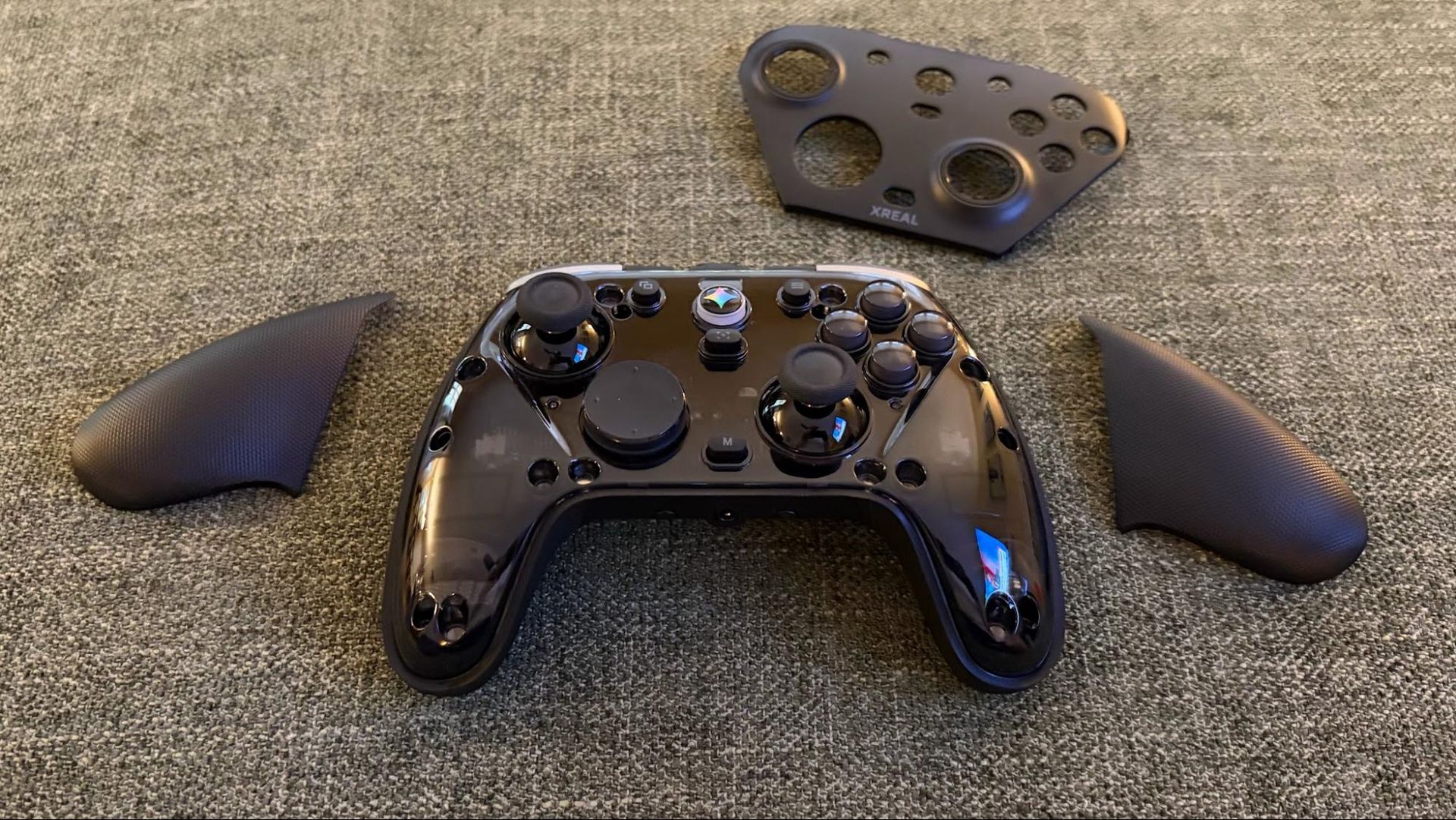
Not only does the controller feature built-in rumble, but it also incorporates a 6-axis gyroscope for aiming and finger controls and a 3.5mm headphone jack built into the bottom of the unit. But perhaps the most interesting feature is a magnetic faceplate that breaks into three pieces. The main piece covers the face buttons, D-pad, and thumbsticks. The other two pieces cover the hand grips. You can purchase separate pieces to customize the look of the controller if you wish.
I found the controller comfortable to use, with a nice textured plastic finish for your palms to rest on (the bottom of the controller features a similar texture, but has a rubber coating over the plastic for better grip). And although the controller is designed for Bluetooth use with the Aura, it does feature a USB-C port and a USB dongle for connecting it wirelessly to a PC.
Another nice touch is that Xreal includes a charging dock for the controller that plugs in with a lengthy USB-A to USB-C cable. The controller itself charges with four pogo pins mounted on top of the dock (or via USB-C if you prefer).
Setting up the Xreal Aura
After removing the Aura from its retail box, I wanted to get into the action quickly and didn’t bother initially charging the puck. I used the included USB-C to USB-C cable to plug from the left arm of the Aura into the dedicated USB-C port on the bottom of the puck. Next, I pressed the power button on the puck, after which the glasses sprang to life and began the setup process.
The setup process first had me perform a few gestures with my fingers to properly set up the viewing window for my eyes. Then, the setup program walked me through pointing, pinch, and drag-and-drop gestures to navigate through the user interface. It was also during this time that I was able to set up my Wi-Fi connection and log in to my Google account. Since I’m an iOS user and rarely, if ever, use Android, I couldn’t speed up setup by logging in with a nearby Android device. So I had to log in to my Google account by pointing and pinching with my fingers to enter my email address and password using the on-screen virtual keyboard. It was a tedious process, but I was eventually able to finish once I completed two-step authentication on my iPhone.
Using the Xreal Aura
After taking some time to get used to dragging and pinching through the Android XR interface using my fingers, the experience began to feel almost natural. I was able to pinch to open apps, have multiple apps open at once, and drag or resize windows in my viewing space on command.
I was able to access all the typical stock apps like Chrome, Gmail, and Google Photos, which, of course, carried over my favorites, emails, and photos/vidoes, respectively. I spent quite a bit of time going down memory lane, watching videos of my two sons when they were toddlers among the hundreds of videos I have stored in Google Photos. It was also great to be navigating around the UI or working in the app, then seeing a notification pop up telling me that an email had arrived. I would then pinch the notification with my fingers to open Gmail.
The possibilities of how you can use the Aura are almost endless, and you can even mix other computing devices into the formula. For example, I was able to plug a USB-C cable from my MacBook Air into the second USB-C port on the puck (that’s usually reserved for recharging the puck). In an instant, my MacBook Air’s display was mirrored onto the glasses in front of me. So I could have Google Docs open as I typed, while having the Android XR native Gmail and YouTube apps flanking the virtual MacBook Air display.
It’s a similar experience with handheld gaming consoles. I was successfully able to connect a Lenovo Legion Go S (SteamOS) and an MSI Claw 8 EX AI+ (Windows 11) to the Aura glasses without issue, enjoying a vast library of games in fully immersive glory.
The native gaming experience isn’t bad either; I loaded up games like Fortnite and spent an hour toiling around in Grand Theft Auto III for a nostalgic treat ahead of the release of Grand Theft Auto VI. The Xreal Game Controller made playing these games a breeze.
But I also used the Aura glasses for more mundane tasks. I was able to walk around the house, performing my usual chores, with a shrunken YouTube window playing videos in the top right corner of my field of view. True multitasking is at hand, folks.
I should note that open-air speakers sounded good, but not great. They sounded similar to the Bose-tuned speakers in the older Xreal One Pro. There's a good level of bass, and overall clarity is good. However, if you want a more immersive audio experience, the design of the Aura allows you to easily throw on a pair of headphones or wireless earbuds to compensate for any audio shortcomings.
Bottom Line
The Xrea Aura is a true workhorse when it comes to spatial computing. By putting the bulk of the computing hardware into a smartphone-shaped Computing Puck, you have a low-impact way of experiencing XR without the hassle of wearing a bulky headset.
You can navigate the user interface using your hands, or the touch service of the puck. And for more specialized tasks, Xreal offers its own-branded keyboard and gamepad accessories (although you are free to use your own Bluetooth-enabled accessories).
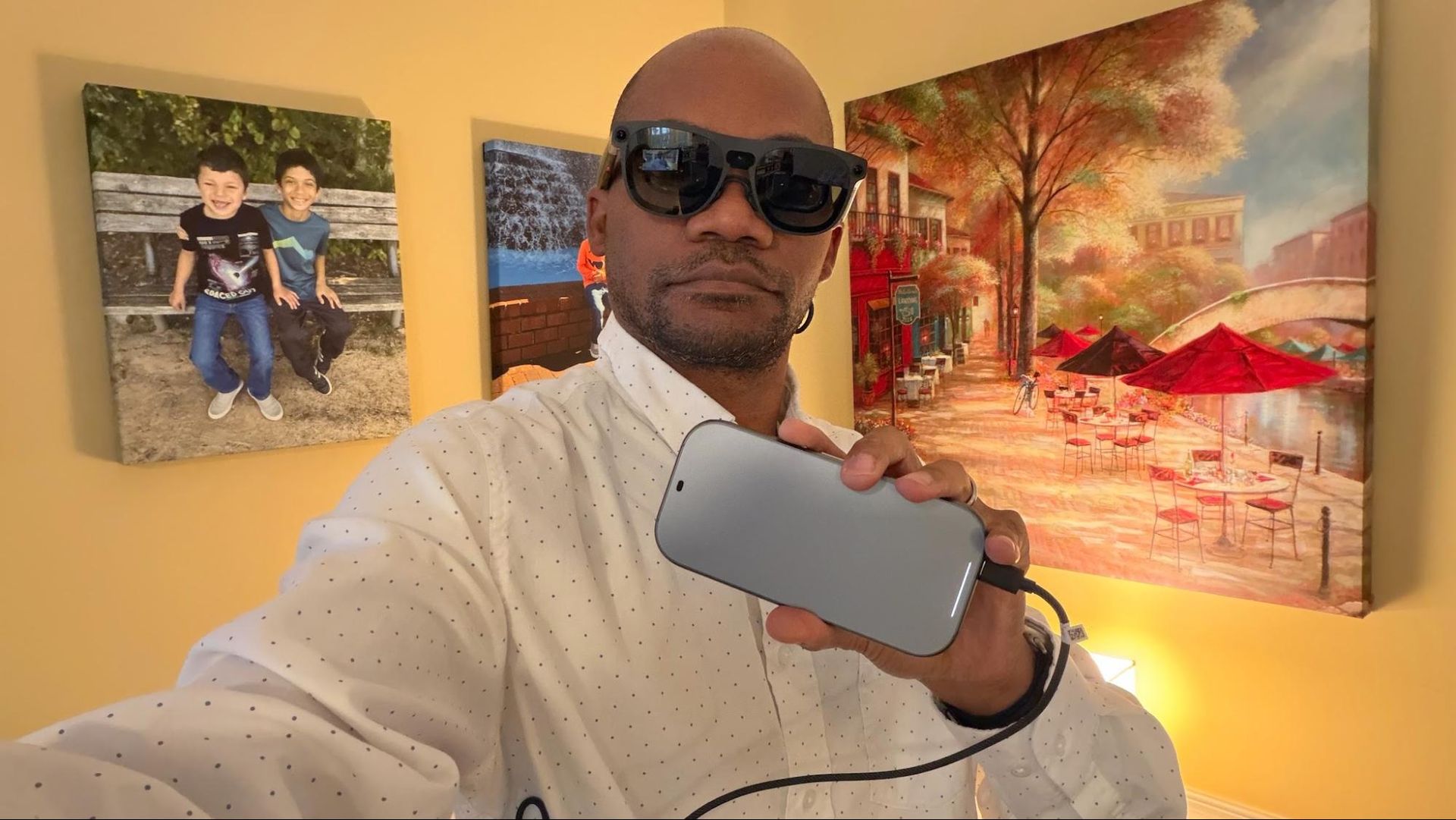
Not only do you have access to the vast Android app ecosystem, but you can also connect to devices running Windows, macOS, or even SteamOS.
There’s a lot going on with this device, and there are limitless possibilities for how you could use the Aura. The only problem is that most people don’t have limitless funds, so the $1,099 price tag of our review unit (12GB RAM, 256GB of storage) is sure to give many people pause. Stepping up to 16GB of RAM and 512GB of storage takes the price to $1,299. If you add in the Xreal Keyboard and Xreal Game Controller, the total cost of our review unit comes in at $1,277 ($1,477 for the 16GB/512GB configuration).
That’s a lot to ask for what is essentially a niche device. However, if you want a truly immersive XR experience that is not weighed down by geeky-looking headsets, it’s hard to argue with what Xreal is offering with the Aura.


