
In our previous post, Build an AI-powered DBA assistant for Amazon Aurora and Amazon RDS with Kiro, you used Kiro as a DBA assistant to investigate and resolve an Amazon Aurora PostgreSQL-Compatible Edition performance incident. From a single conversation, the assistant pulled Amazon CloudWatch metrics, inspected Amazon CloudWatch Database Insights, ran diagnostic queries, and recommended an index.
The recommendations were sound, but they were grounded in general PostgreSQL best practices. The assistant had no awareness of your team’s preferred order of operations, prior incidents on the same workload, or your change-management policies. In this post, you store runbooks in Amazon Simple Storage Service (Amazon S3) and index them with Amazon Bedrock Knowledge Bases on Aurora PostgreSQL with pgvector. You then connect retrieval to the DBA assistant through the Amazon Bedrock Knowledge Bases (KB) Retrieval MCP server.
This is Part 2 of a two-part series on using Kiro as a DBA assistant:
- Part 1: Build an AI-powered DBA assistant for Amazon Aurora and Amazon Relational Database Service (Amazon RDS) for PostgreSQL with Kiro.
- Part 2 (this post): Add your organization’s runbooks and policies using Retrieval Augmented Generation (RAG) on Amazon Aurora PostgreSQL.
Once you finish this walkthrough, the same alert from the previous post comes back with a response that cites your team’s runbook and follows the order of operations it prescribes.
Prerequisites
- An AWS account with appropriate permissions for Aurora PostgreSQL, Amazon Bedrock, and Amazon S3.
- An Amazon Aurora PostgreSQL DB cluster running version 15.4 or higher (16.x recommended). pgvector 0.5.0 or later is available on these versions. You enable it with
CREATE EXTENSION vector. - Access to Amazon Bedrock foundation models (Amazon Titan Text Embeddings V2) in the same AWS Region as your Aurora cluster.
- Amazon Bedrock Knowledge Bases connects to Aurora through the RDS Data API. Make sure the Data API is enabled on your cluster. Amazon Bedrock connects through the Knowledge Base service role, which needs RDS Data API and AWS Secrets Manager permissions.
- Everything from Part 1’s prerequisites (Kiro, the Aurora PostgreSQL MCP server configured and working).
Solution overview
This solution uses Amazon Aurora PostgreSQL as a vector store for Amazon Bedrock Knowledge Bases, with source documents stored in Amazon S3 and database credentials secured in AWS Secrets Manager.
The workflow includes the following steps:
- You upload your runbooks, compliance policies, and operational documents to an Amazon S3 bucket.
- Amazon Bedrock Knowledge Bases chunks the documents and generates embeddings using Amazon Titan Text Embeddings V2.
- The vectors are stored in Amazon Aurora PostgreSQL using the pgvector extension.
- You wire up retrieval through the Amazon Bedrock Knowledge Base Retrieval MCP server, so the same assistant from Part 1 can look up your team’s docs before answering.
The following diagram illustrates the solution architecture.
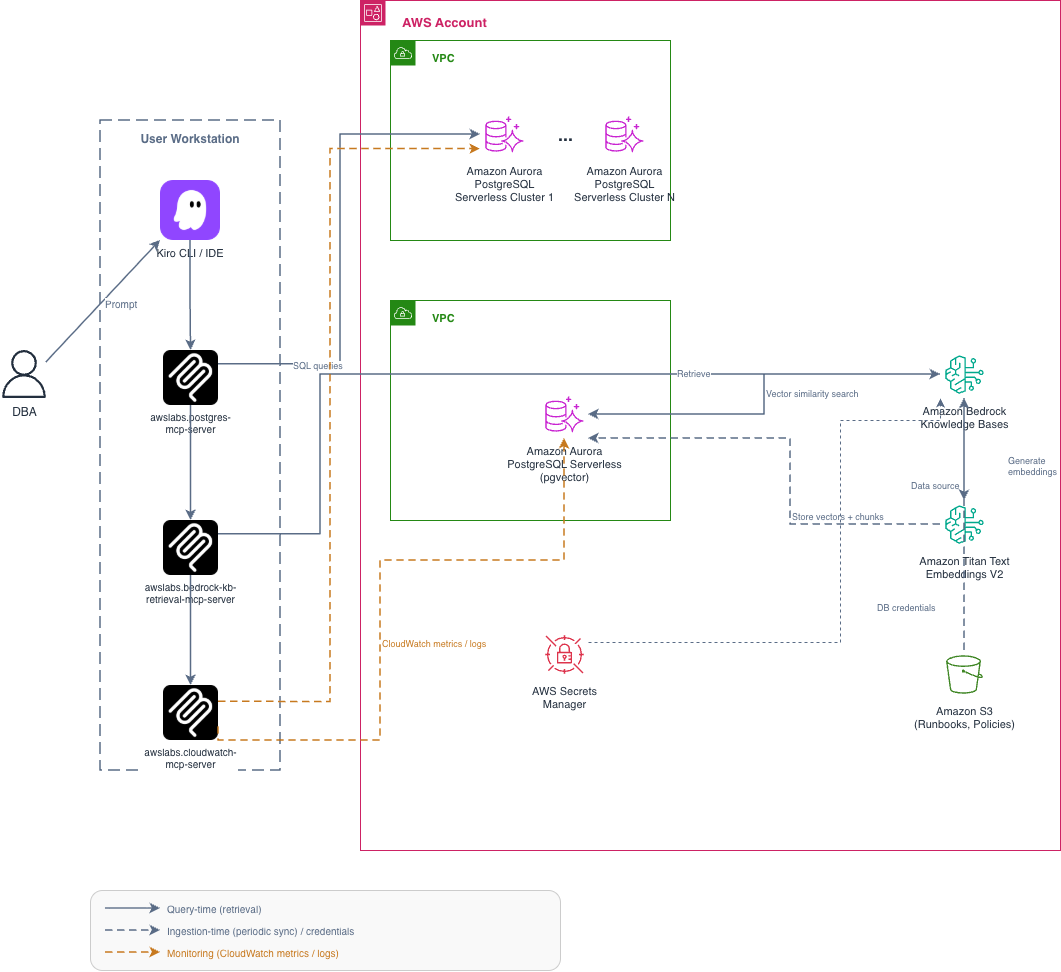
Figure 1: The DBA assistant queries Amazon Bedrock Knowledge Bases, which retrieves relevant chunks from Aurora PostgreSQL (pgvector) to ground responses in your organization’s documentation
How it works
The data flow operates in two phases:
- Ingestion (one-time or periodic): You upload runbooks and policy documents to an S3 bucket. Amazon Bedrock Knowledge Bases reads the documents, splits them into chunks, generates vector embeddings using Amazon Titan Text Embeddings V2, and stores the embeddings alongside the text chunks in your Aurora PostgreSQL cluster using the pgvector extension.
- Retrieval (at query time): When you ask the DBA assistant a question, Kiro calls the Amazon Bedrock KB Retrieval MCP server. The server sends the query to Amazon Bedrock Knowledge Bases, which converts it to a vector. It then performs a similarity search against the embeddings stored in Aurora PostgreSQL and returns the most relevant document chunks. The assistant then uses these chunks as context to formulate a response grounded in your team’s documentation.
Solution walkthrough
Set up Aurora PostgreSQL as a vector store for Amazon Bedrock Knowledge Bases
To use Aurora PostgreSQL as a vector store for Amazon Bedrock Knowledge Bases, you provision a cluster with pgvector, create the schema and table, set up indexes, and register the Knowledge Base in the Amazon Bedrock console. The following blog post covers all of these steps: Build generative AI applications with Amazon Aurora and Amazon Bedrock Knowledge Bases.
Follow that walkthrough to complete these steps:
- Create an Aurora PostgreSQL serverless cluster with a supported version and the RDS Data API enabled.
- Enable the pgvector extension with
CREATE EXTENSION vector;. - Create a dedicated schema (
bedrock_integration), abedrock_userrole, and the Knowledge Base table with the required columns (id,embedding,chunks,metadata,custom_metadata). - Create the HNSW (hierarchical navigable small worlds) vector index, full-text search index, and metadata index.
- Store the
bedrock_usercredentials in AWS Secrets Manager. - Create the Knowledge Base in the Amazon Bedrock console, selecting Aurora PostgreSQL as the vector store and mapping the columns.
One additional step. When you create the Knowledge Base in the Amazon Bedrock console, add a resource tag with key mcp-multirag-kb and value true. The Amazon Bedrock KB Retrieval MCP server uses this tag to discover available Knowledge Bases automatically. Without this tag, the MCP server cannot find your Knowledge Base. You can customize this tag key by setting the KB_INCLUSION_TAG_KEY environment variable in the MCP server configuration.
After you complete these steps, move on to ingesting your documents and connecting retrieval to the DBA assistant.
Create and upload your source documents
Create your organization’s compliance policies, runbooks, or operational documentation. The following is an example compliance document for a fictional company:
Upload this document to an S3 bucket that will serve as the data source for your Knowledge Base:
Create a data source and sync
- In the Amazon Bedrock Knowledge Base console, choose Add data source.
- Select Amazon S3 as the source.
- Provide the S3 bucket URI (for example, s3:///policies/).
- Configure chunking strategy (default or custom).
- Choose Add and then Sync to ingest the documents.
Tip. For structured policy documents with numbered sections and tables, use a custom chunking strategy that splits by section headers. The default strategy may return large chunks spanning the entire document, reducing retrieval precision for targeted queries. For details on configuring custom chunking, check Chunking and parsing configurations in the Amazon Bedrock documentation.
The sync process generates embeddings from your documents and stores them in Aurora PostgreSQL.
Verify the setup
Before you connect the MCP server, confirm that retrieval works by testing directly in the Amazon Bedrock console or through the AWS CLI.
Sample output:
You should see relevant chunks from your compliance document in the response. If no results return, verify:
- The data source sync completed successfully (check the sync status in the Amazon Bedrock console).
- Your documents are in the correct S3 path.
- The embedding model has access to the S3 bucket.
Update the DBA agent MCP configuration
Add the Amazon Bedrock Knowledge Base Retrieval MCP server to your Kiro MCP configuration alongside the existing Aurora PostgreSQL MCP server from Part 1. This gives the agent two tools: one for querying your workload database, and one for retrieving from your Knowledge Base.
In your Kiro MCP configuration (for example, ~/.kiro/settings/mcp.json or your workspace .kiro/settings/mcp.json):
Note. The Amazon Bedrock KB Retrieval MCP server discovers Knowledge Bases automatically using the resource tag mcp-multirag-kb: true that you added during Knowledge Base creation. No Knowledge Base ID needs to be hardcoded in the configuration.
Next, create a Kiro steering file at .kiro/steering/dba-kb-search.md to instruct the agent to check the Knowledge Base before recommending any remediation:
This walkthrough uses the same write-safety steering file (.kiro/steering/dba-write-safety.md) from Part 1 that stops the agent from executing DDL, DML, or AWS control plane mutations on production databases. If you haven’t created it yet, refer to Part 1 for the full steering file content.
Note. The steering file is a “soft” guardrail. For production use, combine it with the read-only database role and IAM deny policy described in Part 1 to enforce write protection at three independent layers.
Query your Knowledge Base
With the agent configured, you can now run prompts that use your organization’s compliance policies. For example:
- “What is our backup retention policy for production databases?”
- “Is it compliant to have a publicly accessible Aurora instance?”
- “What are the monitoring requirements for production databases?”
- “What approvals are needed for a major version upgrade?”
The agent queries the Knowledge Base, pulls back the relevant policy sections, and answers based on what your team actually wrote down.
Example scenario
The same alert from the previous post starts this scenario: Aurora PostgreSQL cluster demo-apg CPU utilization above 90% for 10 minutes. Database connections approaching limit.
Previously, the assistant returned three remediation candidates ranked by general best practices and left the final choice to a side conversation with the application team. With your runbooks indexed in a Knowledge Base, the assistant checks your team’s preferred remediation order first, cites the source in its response, and pulls up prior incidents that match the same symptoms.
Without retrieval (Part 1): The assistant gives you three options ranked by general best practices. You pick one after checking with the app team.
DBA prompt: “CPU is at 95% on
demo-apg. Sequential scans on the orders table are causing the spike. What should I do?”Part 1 response (general best practices):
Based on my analysis, here are three remediation options ranked by impact:
- Create an index: CREATE INDEX CONCURRENTLY idx_orders_customer_id_created_at ON orders(customer_id, created_at);
- Redirect read traffic: Point read queries to the reader endpoint to reduce writer load.
- Scale up: Modify the instance class from db.r6g.large to db.r6g.xlarge.
I recommend option 1 as the primary fix. Here’s the command to run through your change process.
With retrieval (this post): The assistant checks your runbook first, cites the compliance policy, and leads with the documented order of operations.
DBA prompt: “CPU is at 95% on
demo-apg. Sequential scans on the orders table are causing the spike. What should I do?”Part 2 response (grounded in your policies):
Based on
policies/compliance-policy.md, I cannot execute schema changes directly. Here’s what your policy requires:Compliance check: – Production schema changes require peer review and CAB approval (Rule 8.1) – A manual snapshot is required before making changes (Rule 4.2)
Recommended fix:
Before applying, follow your change management process: 1. Submit for peer review and CAB approval (Rule 8.1) 2. Take a manual snapshot: pre-index-fix-demo-apg-20260617 (Rule 4.2)
Immediate mitigation (no schema change required): redirect read traffic to the reader endpoint
demo-apg.cluster-ro-*.rds.amazonaws.comto reduce writer CPU while awaiting approval.Source: s3:///policies/compliance-policy.md, Sections 4 and 8
The key difference: Part 1 offers to execute the fix immediately. Part 2 knows your policies, refuses to execute directly, cites the specific rules, and provides a cautious immediate mitigation that doesn’t require change approval.
Even safe-sounding operations like creating a snapshot are presented as recommendations. If the DBA asks “Create a snapshot before we make changes,” the Part 2 agent responds:
Per Rule 4.2, a manual snapshot is required before schema changes. Please run:
If I attempted this directly, my IAM role would return
AccessDeniedExceptionsince it only has read permissions.
Demonstration
The following demonstration shows the complete workflow. You provision Aurora PostgreSQL as a vector store, ingest compliance documents through Amazon Bedrock Knowledge Bases, and query the Knowledge Base through the DBA assistant. The agent retrieves your team’s actual policies before recommending a remediation.
Best practices
- Three-layer write protection. The steering files from Part 1 provide the soft guardrail. Combine with the read-only database role and IAM deny policy from Part 1 to enforce at three independent layers.
- Refresh cadence. Re-sync your data source in Amazon Bedrock whenever runbooks change, or schedule periodic syncs through Amazon EventBridge.
- Document quality. Start small and high-signal. A few well-written runbooks are better than hundreds of outdated ones.
- Metadata filtering. Use the
custom_metadatacolumn to tag documents by scope, owner, and last-reviewed date for targeted retrieval. - Access control. Keep
bedrock_userleast-privilege. GrantSELECT,INSERT,UPDATE, andDELETEon thebedrock_integrationschema tables. Amazon Bedrock needsUPDATEandDELETEto reflect document changes and removals during re-sync. To lock down further, grantSELECTandINSERTonly during initial ingestion, then addUPDATEandDELETEbefore running incremental syncs. Note that this requires changing grants each sync cycle. - Evaluation. Maintain a small set of test queries with expected answers. Rerun them after each sync to catch retrieval degradation.
- Multiple Knowledge Bases. If you have several, use the
KB_INCLUSION_TAG_KEYenvironment variable in the MCP server config to filter by a custom tag key.
Security considerations
Documents stored in the Knowledge Base are accessible to principals with bedrock:Retrieve permission on that Knowledge Base. If your runbooks or policies contain sensitive operational details, take the following precautions:
- Apply IAM resource policies to restrict which roles can call
Retrieveon the Knowledge Base. - Use separate Knowledge Bases for different sensitivity tiers (public runbooks compared to internal security procedures).
- Enable AWS CloudTrail logging to audit retrieval calls and identify unexpected access patterns.
- Review the Amazon Bedrock Knowledge Base data protection documentation for encryption and data handling details.
Clean up
To avoid ongoing charges, delete the resources you created in this walkthrough:
- Delete the Knowledge Base:
- Delete the S3 data source bucket (or remove the objects):
- Delete the Aurora PostgreSQL cluster (if you created it for this walkthrough). First, disable deletion protection, then delete the cluster instance, and then delete the cluster itself.
- Delete the Secrets Manager secret:
- Remove the Amazon Bedrock service role (if you created a dedicated role for the Knowledge Base):
- Remove the bedrock-kb-retrieval-mcp-server entry from your Kiro MCP configuration:
~/.kiro/settings/mcp.json(or.kiro/settings/mcp.jsonin your workspace). - Delete the “awslabs.bedrock-kb-retrieval-mcp-server” block from the mcpServers object.
- Remove the Knowledge Base steering file:
rm .kiro/steering/dba-kb-search.md - Remove the resources from Part 1. Part 1 asked you to keep these for this post, so remove them now if you’re finished with the series.
- Drop the demo index and the read-only database role from your workload cluster. Connect with your DBA role, not the agent’s read-only role:
- Delete the Part 1 database credentials secret:
- Delete the read-only IAM policy. Detach it from the IAM user or role used by the MCP server first (delete-policy fails if the policy is still attached):
- Remove the DBA agent configuration and the write-safety steering file:
For more information on managing costs, see Amazon Aurora pricing and Amazon Bedrock pricing.
Conclusion
In this post, you connected the DBA assistant to your team’s actual runbooks and policies so it answers questions with context specific to your environment rather than generic guidance. The Knowledge Base stays current as your documentation evolves, and everything remains within your AWS account under your control.


