AWS Identity and Access Management (IAM) is introducing account access manager, a flexible new way to manage workforce access to your Amazon Web Services (AWS) accounts. This combines the IAM role flexibility your teams already rely on, delivered through the centralized federation of AWS IAM Identity Center, with user-level visibility built-in.
Account access manager streamlines the assignment of your existing IAM roles from individual AWS accounts to your workforce users and groups in an organization instance of IAM Identity Center, giving you a clear path to centralized access management at scale. You can adopt account access manager on its own or alongside IAM Identity Center permission sets; both draw on the same users and groups you already synchronize from your corporate identity provider. That means you assign your existing IAM roles to those users and groups directly, without duplicating identities or managing per-account federation points.
Why use account access manager?
Enterprises scaling on AWS have long faced a difficult choice in workforce access: the flexibility of IAM roles or the central control of IAM Identity Center. Until now, granting workforce access to AWS accounts generally meant choosing one of two approaches, each with trade-offs to consider. Federating into each account separately with IAM roles gives you the full flexibility of IAM roles—custom trust policies, tags, and paths—but requires you to configure an identity provider and manage role assignments independently in each account, making it harder to assign a group across multiple accounts or maintain a unified view of who has access where. Federating once through IAM Identity Center with permission sets gives you a single federation point with centrally provisioned, uniform access, but permission sets can feel restrictive for teams whose roles vary from account to account, or that have difficulty generalizing their existing roles into uniform sets.
Account access manager removes the trade-offs. It’s built for customers who want the single federation point and identity-propagation benefits of IAM Identity Center together with the flexibility of IAM roles. Because it uses the IAM roles you already own, you keep the tailoring capabilities you rely on today:
- Attribute-based access control (ABAC) – Use IAM role tags, or session tags populated from your identity provider as SAML claims, for fine-grained, attribute-driven authorization.
- Precise trust policies – Restrict role assumption with network conditions or identity provider (IdP)-asserted claims, such as group membership, department, or cost center, as trust-policy conditions.
- Role paths for organization at scale – Use IAM role paths to group roles and simplify administration as your environment grows.
Because roles are managed in the account you provision access to, account access manager scales with your account usage rather than relying on Identity Center specific quotas. Assignments are made to users and groups, reducing administrative overhead, and providing accountability and auditability to the specific user and role being used.
How it works
Access flows through IAM Identity Center and carries the user’s identity through trusted identity propagation. Even when multiple users assume a shared IAM role, each role session contains user context that attributes every action to the individual user. Access is granted and audited against the actual user, so you can see who assumed which role in which account. The result is user-level visibility across your organization, not just at the point of sign-in. You also maintain access to the full set of IAM role capabilities, such as role paths, tagging, naming conventions, and other IAM primitives.
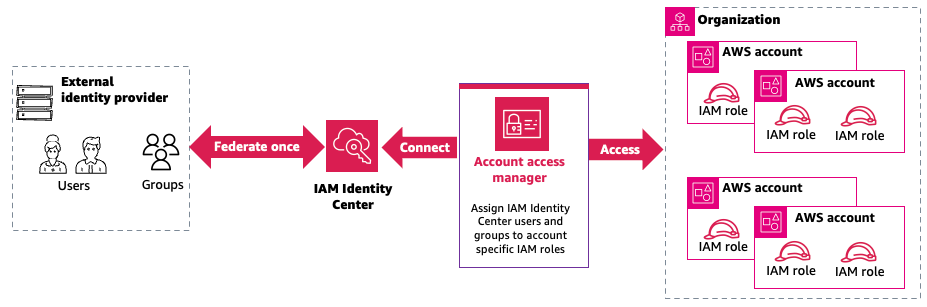
Figure 1: Account access manager connects IAM Identity Center federated workforce users and groups to AWS accounts specific IAM roles
To grant a user access to a specific role in an account using account access manager, an administrator creates an entitlement. The user can then access that account from the new account access manager application portal or from their IAM Identity Center access portal, or retrieve credentials from the command line with aws login.
You can manage account access manager through the AWS Management Console for IAM and programmatically through the AWS Command Line Interface (AWS CLI) (aws login and the account-access API namespace), AWS SDKs, AWS CloudFormation, and HashiCorp Terraform and Pulumi, so you can enable it and manage role assignments the same way you manage the rest of your AWS infrastructure. It exposes its own API namespace, account-access, separate from the IAM API, with its own permissions and AWS CloudTrail events.
How to enable account access manager
Here’s how to enable account access manager in your own environment, from prerequisites through your first role assignment.
Prerequisites
- An organization instance of IAM Identity Center enabled.
- Users or groups in IAM Identity Center that you want to entitle with IAM roles from individual AWS accounts. If users or groups don’t exist already then either:
- Connect Identity Center to your external identity provider to automatically provision your corporate identities into Identity Center using SCIM.
- Create users and groups in the Identity Center directory.
- IAM roles in the individual AWS accounts that you want to assign to users and groups of IAM Identity Center. If the role you need doesn’t exist, create a role using custom trust policies first.
- Appropriate permissions to enable account access manager and manage assignments (see the IAM policy examples later in this post).
- Both the organization instance of IAM Identity Center and account access manager must be enabled in your organization’s management account.
- For CLI access: Install or update to the latest version of the AWS Command Line Interface (AWS CLI) v2.36.0 or newer.
Step 1: Enable account access manager
Before enabling account access manager, run the following command from the AWS organization management account to grant account access manager access to your organization:
Next, use one of the following methods to enable account access manager:
Console:
- Sign in to your organization’s management account.
- In the AWS Management Console for IAM navigation pane, under Multi-account access, choose account access manager.
- The console Region should be set to the primary Region of your IAM Identity Center instance.
- If there is no organization instance of IAM Identity Center, you’ll be prompted to enable one before continuing. Otherwise, choose Enable account access manager.
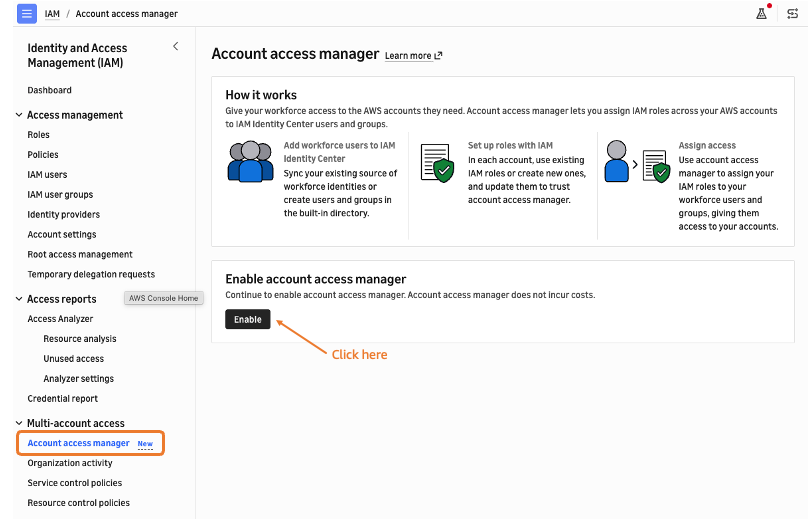
Figure 2: Account access manager enablement from the IAM console
AWS CLI:
Fetch the Amazon Resource Name (ARN) of your IAM Identity Center organization instance, confirm the Region code matches its primary Region, and run:
As an output, the account access manager application ARN will be generated.
After you enable account access manager (through the console or AWS CLI), you will get the account access URL and the account access manager ARN along with other details on the capability.
- Account access portal URL is the single sign-on entry point for your workforce. This is where your users will go to access AWS accounts. Its format is
- https://[Tenant-ID].account-access.[Region].app.aws, found on the Settings tab of the account access manager console. - Account access manager ARN: the identifier for the application instance created when you enable account access manager. Note this ARN to use in your IAM role’s trust policies so that only your specific account access manager application can assume those roles, providing confused-deputy protection (see Step 3 for details) and pass it as
--application-arnwhen creating entitlements using the AWS CLI so each assignment is tied to the correct application instance.
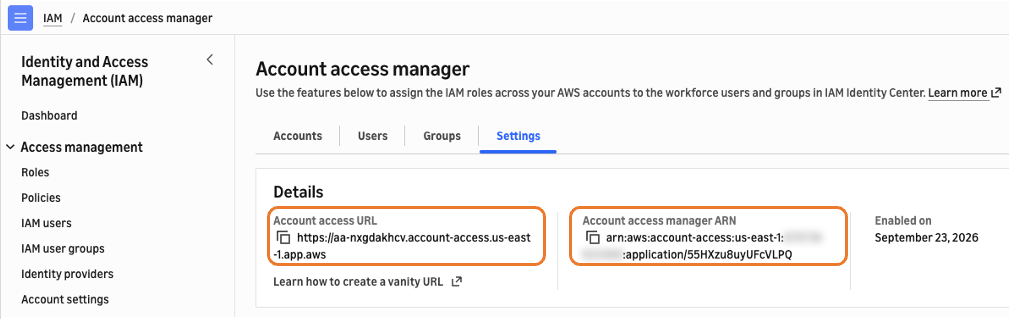
Figure 3: Account access manager settings after enablement
In the AWS CLI, run the command aws account-access list-applications to get the application ARN and tenant-ID of the enabled account access manager instance ARN.
Step 2: Update firewalls and gateways
If you filter access to specific AWS domains or URL endpoints with a next-generation firewall (NGFW) or Secure Web Gateway (SWG), allowlist the account access portal domains and endpoints in the following list. Account access manager has no IPv4-only endpoints; endpoints are dual-stack.
- Account access portal URL –
https://[Tenant-ID].account-access.[Region].app.aws - Portal APIs –
[Tenant-ID].account-access.[Region].app.aws/api/* and /auth/* - Control plane –
account-access.[Region].api.aws - Runtime –
account-access-runtime.[Region].api.aws - Console –
console.aws.amazon.com/account-access
Step 3: Prepare your IAM roles
Before assigning IAM roles to users and groups, update the role’s trust policy to allow account access manager service to assume it.
Add the following statement to the role’s trust policy (or paste the entire policy that follows if you’re creating a new role). Replace <your-account-id>, <region> (your IAM Identity Center primary Region), and <application-id> (from the Settings page of the console).
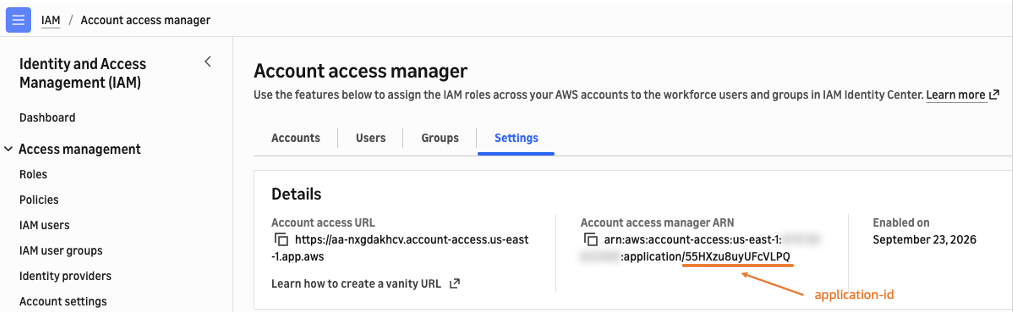
Figure 4: Account access manager ARN details
IAM role trust policy:
Define the Condition block to enforce confused-deputy protection. It helps ensure that the role can be assumed only by the specific account access manager application instance (defined using the application ARN) created when you enabled the service, and only when the request originates from your AWS account where that instance resides.
Best practice:
- Propagate identity attributes with ABAC – The
sts:TagSessionaction listed in the preceding IAM role trust policy allows upstream attributes from your identity provider (group memberships, department, cost center) to flow through as principal tags on the session. Without it, role assumption still succeeds; only session-tag propagation is suppressed. Add it when downstream IAM policies useaws:PrincipalTag/<key>and the tag is populated from your IdP SAML claims; leave it out otherwise. - Automate the trust-policy update – We recommend updating your IAM role-creation workflows to add this trust-policy statement automatically wherever it’s needed, so new roles are assignable from day one. You can use this sample-aam-migration tool as a reference.
Step 4: Assign access to users and groups
Like IAM Identity Center role entitlements, an entitlement in account access manager requires three components: a user or group ID, an account ID, and an IAM role ARN (instead of a permission set ARN). You can create assignments from the Accounts, Users, or Groups tabs in the console, or using the API or AWS CLI. For assignments where the same role needs to be assigned to multiple users, you must create each assignment individually. You can automate it using the account access API, the AWS SDK, or AWS CLI.
Assign from the console:
- Choose the Users tab and search by username or display name.
- Select the user, then choose Assign new access.
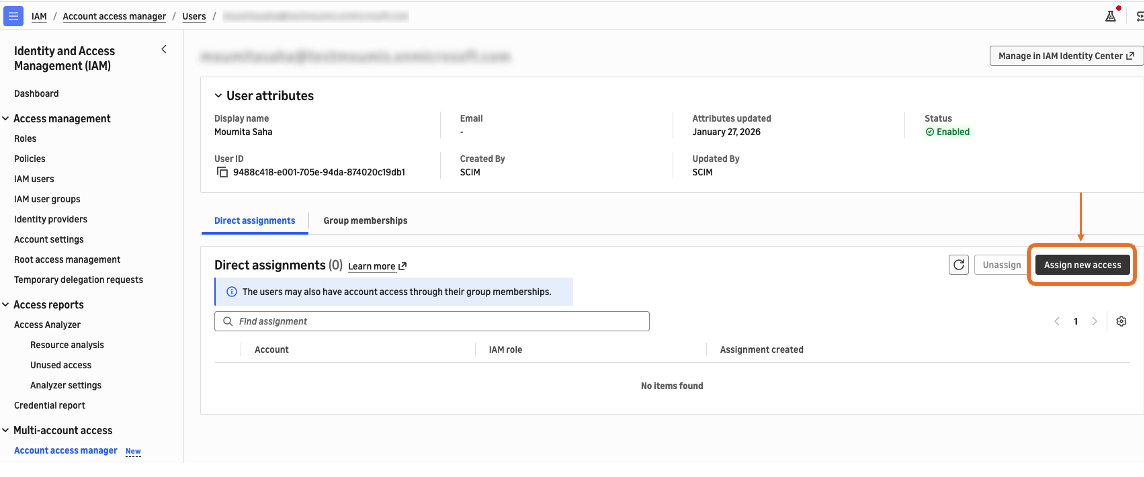
Figure 5: Assign new access in account access manager
- On the Assign account access page, enter the workforce user or group, account ID, and IAM role name, then choose Assign access.
Assign a user using AWS CLI:
To assign a group, replace the userId block with "groupId": "<IDC_GROUP_ID>". To remove access, use aws account-access delete-entitlement with the entitlement ID.
Note:
- The console can search users, groups, and accounts, but it can’t detect IAM roles because they can come from different AWS accounts in your organization; you must know the role name beforehand.
- Only IAM roles whose trust policy grants account access manager as an allowed service principal are eligible for assignment.
- IAM role sessions assigned by account access manager use the maximum session duration configured on the underlying IAM role in each AWS account, up to 12 hours.
Step 5: How workforce users can sign in
Workforce users can federate to AWS accounts using IAM roles assigned through account access manager in any of the following ways:
- Directly through the account access portal URL – Navigate to the portal URL (for example,
https://aa-xxxxxxxxx.account-access.us-east-2.app.aws, or a vanity URL) and sign in. - Through the AWS access portal – Go to the Applications tab, select the Account Access application, and you’ll be redirected to the account access portal, where your assigned accounts and their respective roles are listed.
Tip: We recommend that users bookmark both the account access portal and the AWS access portal for faster navigation. In addition, if you use a supported IdP, such as Okta, Microsoft Entra ID, or Ping Identity, you can add the account access portal as a bookmark app in the IdP’s dashboard, giving users authenticated, single-click access to the portal directly from the tools they already sign in to each day.
Access through a web browser
Use the following steps to use account access manager through a web browser.
- Navigate to the account access portal URL and sign in with your credentials.
- On the portal, find the AWS account you need. Search by account name or ID to filter the list of accounts you’re assigned to.
- Expand the account to see the roles you can assume.
- Select a role (for example, Developer). A new tab opens, signed into that account with the selected role.
Access through the AWS CLI
Account access manager works with the aws login command. To get started:
- Install the latest AWS CLI (v2.36.0 or newer).
- Sign in through your default browser – Sign in to your account access portal and into the target AWS account using one of your assigned roles.
- On the AWS CLI, run:
- Set a default Region if prompted – If you haven’t set one, the AWS CLI will prompt you for a Region (for example, us-east-2).
- Select your session – The AWS CLI opens a browser page; select the tile for the session you initiated.
- Confirm and return to the CLI – The page confirms that your credentials were shared successfully. Close the tab and keep working in the AWS CLI for the duration of your session.
The temporary credentials are automatically rotated by the AWS CLI, AWS Tools for PowerShell, and AWS SDKs, and remain valid for the default session duration of an IAM role. After the session expires, you’re prompted to sign in again on the browser.
Note: IAM Identity Center–specific commands, such as
aws sso configure, don’t work with account access manager assignments; useaws logininstead. If you want to continue to useaws sso login, refer to AWS CLI Integration for IAM Account access manager.
Create shortcut links to specific console destinations
The portal also lets you create a shortcut link that opens a specific console destination for a given account and role. Shortcut links work only with accounts and roles already assigned to the user—they can’t grant new access—and URL parameters must be URL-encoded. Because shortcut links are Regional and expose the account ID and role name in plain text, review your organization’s sharing policies before experimenting with them.
Customer managed key considerations
If your IAM Identity Center instance is encrypted with an AWS Key Management Service (AWS KMS) customer managed key, which is required when you replicate IAM Identity Center to additional Regions, check the key policy before you enable account access manager. We recommend implementing the current baseline KMS key policy to ensure account access manager can read user, group, and instance data from IAM Identity Center.
Best practices summary
- Enable in the right place – Enable account access manager in your organization’s management account and in the same Region as your IAM Identity Center instance and confirm your organization instance is in place before you begin.
- Automate trust-policy updates – Build the account access manager trust-policy statement into your role-creation pipelines so every new role is assignable from day one, with no manual intervention.
- Add
sts:TagSessiononly when you need it – Include it only where downstream policies consume principal tags; otherwise leave it off to keep sessions lean and least-privilege. - Assign roles to groups, not individual users – Granting access at the group level reduces administrative overhead and strengthens the auditability of user-level access.
- Scope administrator permissions tightly – Separate managing the feature from managing assignments, and enable delegating administration to keep day-to-day operations out of the management account.
- Allowlist the portal domains before rollout – Add the account access portal domains and endpoints to your next-generation firewall or Secure Web Gateway ahead of launch to avoid access disruptions.
- Prepare your workforce users – Have users bookmark both the account access portal and the AWS access portal and communicate the
aws loginflow clearly to your developers.
Account access manager launch partners
Account access manager launches with a broad ecosystem of AWS identity and access-governance partners who have integrated the service into their existing solutions, making it available to our joint customers from day one. Leading identity providers Okta, PingIdentity and Cisco Duo extend account access manager so customers can manage human workforce access to AWS accounts directly from the identity platforms they already use. Alongside them, access-governance and privileged-access partners Apono, BeyondTrust, Britive, Sonrai Security, C1.ai and Lumos added capabilities to govern, provision, and audit that access through the tooling our customers already rely on.
Account access manager also integrates with leading infrastructure-as-code (IaC) partners, so teams can define and manage access assignments declaratively alongside the rest of their AWS infrastructure. Pulumi enables customers to codify account access manager role assignments as part of their existing provisioning workflows, bringing repeatable, version-controlled automation to workforce access at scale.
Conclusion
Account access manager combines the flexibility of the IAM roles your teams already own with the single, centralized federation point of IAM Identity Center, adding user-level visibility into what users or roles have done across your organization. You assign existing IAM roles to users and groups centrally, scale with your account usage rather than a fixed quota, and give developers a fast, secure command-line experience with aws login. It’s available at no additional cost, enabled by default in Commercial Regions (excluding opt-in Commercial Regions, GovCloud (US), China, and other non-commercial Regions).
To see account access manager in action, watch the enablement video, which walks through enabling the service, preparing your IAM roles, and assigning access to your workforce end to end. You can also extend account access manager through our launch partners; leading identity, access-governance, and IaC providers who have integrated the service into their platforms, so you can govern, provision, and automate workforce access to AWS using the tooling you already rely on. Review the preceding partner integrations to find the ones that fit your environment.
To learn more and get started, visit the AWS Identity and Access Management User Guide. We encourage you to enable account access manager in a test organization, assign your first entitlement, and explore how centralized, user-attributed access can simplify your AWS environment.


